
Email notifications
The Notifications tab on your Settings page controls the emails Buddy Stall sends you. It covers the low-stock email and the inventory-discrepancy email — and, once your store is connected to a franchise, order updates too. These settings are for the owner only.
Low-stock email
When it's on, we send you a daily email listing the inventory items across your stores that have run low or gone out of stock — so you can reorder before you run out. The card has two controls:
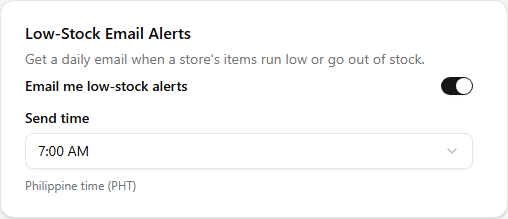
- Email me low-stock alerts — a switch to turn the daily email on or off.
- Send time — the hour of day the email is sent, in Philippine time (PHT). Pick a time that suits your morning routine.
Changes save on their own as soon as you flip the switch or pick a time.
Inventory discrepancy email
A stocktake sometimes comes back far from the stock BuddyStall expected — a count that's well short (possible shrinkage) or well over (a miscount or a double-recorded restock). Inside the app these already show up as a red dot on the item's history icon (see Inventory alerts); this setting emails you a daily digest of them so you don't have to go looking.
When it's on, we email you on any day a stocktake turns up a discrepancy — at most one email a day, listing every flagged count across your stores (the item, the size and direction of the gap, and who did the count), so a pattern is easy to spot. Several discrepancies are gathered into that single email, and each one is reported only once. On a day with nothing flagged, no email goes out. The card has three controls:
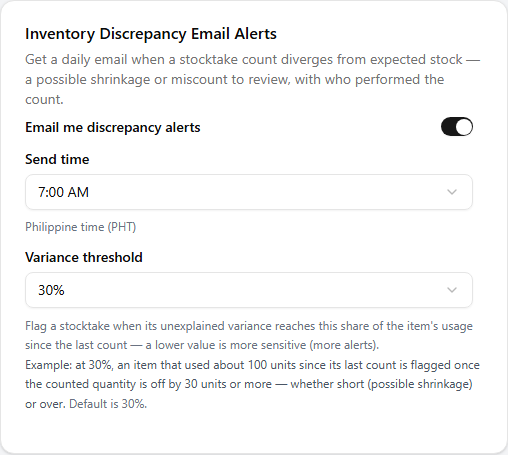
- Email me discrepancy alerts — the switch that turns the daily email on or off. On by default.
- Send time — the hour the email goes out, in Philippine time (PHT), just like the low-stock email.
- Variance threshold — how far off a count has to land before it's flagged, measured as a share of the item's usage since the last count. A lower value is more sensitive (more alerts); 30% is the default. For example, at 30% an item that used about 100 units since its last count is flagged once the count is off by 30 units or more. This threshold also drives the in-app dot, so it applies whether or not the email is switched on.
Changes save on their own as soon as you flip the switch or pick a value.
Read next
Inventory alerts
How items become 'low', the thresholds behind it, and the alerts you see inside the app.
Settings
The rest of your account page — email verification, changing your email or password, connections, and support.
Billing & subscription
Your plan and trial, paying an invoice by GCash, and your billing history.
Everything below applies only once your store has joined a franchise. These features stay hidden until you connect, so a single, unconnected store can stop here. See Joining a franchise.
Order updates
When your store is connected to a franchise, some orders are a hand-off between you and the other side — the orders you place with your Franchisor's stockhouse, and orders with an approved partner supplier. As one of these orders moves along, its status changes hands, and this setting decides whether we email you each time it does.
When it's on, we email you as the other side acts on your order — for example when the Franchisor accepts it, ships it, invoices it, proposes a quantity change, or cancels it. The email names the order and its new status, so you can keep track without watching the Orders page. It's a single on/off switch, on by default.
- Email me order status updates — the switch that turns these emails on or off. Your change saves on its own as soon as you flip it.
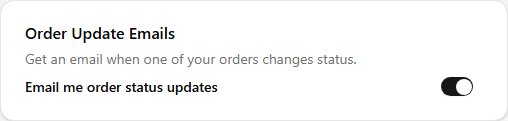
This card appears only when your store is connected to a franchise — that's the only time these back-and-forth orders exist. A single, unconnected store places plain supplier orders it fills itself, which send no status emails, so the card stays hidden. To see how franchise orders move, read Purchase from Franchisor.