
Settings
Settings is your own account page. Open it from Settings at the bottom of the admin sidebar. The account changes here act on your own login. The page is organised into tabs — one per section below.
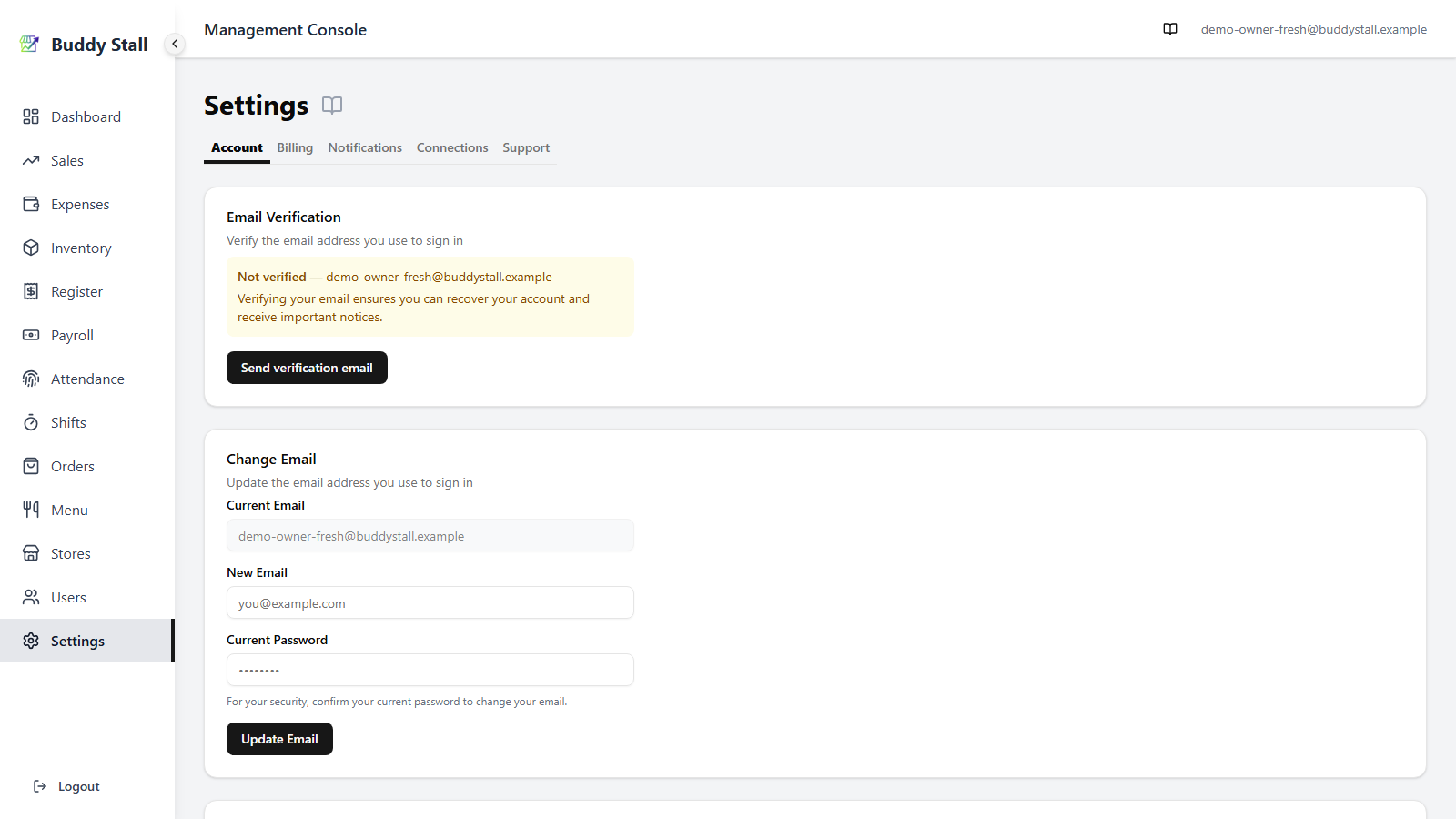
Account
The Account tab is where you verify and change the email and password you sign in with, and — at the very bottom — delete your account.
Verify your email
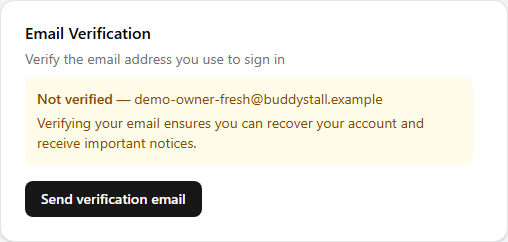
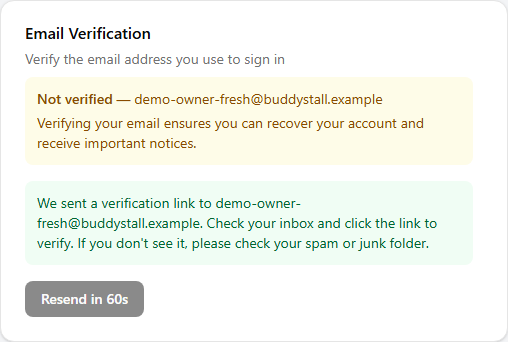
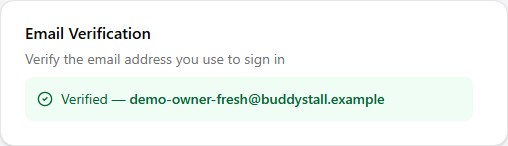
The Account tab opens with an Email Verification card. If your email is already verified it shows a green Verified badge with your address. If not, select Send verification email — we email a verification link to your address; open it and click through to verify, then reload the page to see the updated status. After sending, the button shows a short Resend cooldown before you can send again.
The card moves through three states — before you send, right after you send, and once your email is verified:
Change your email
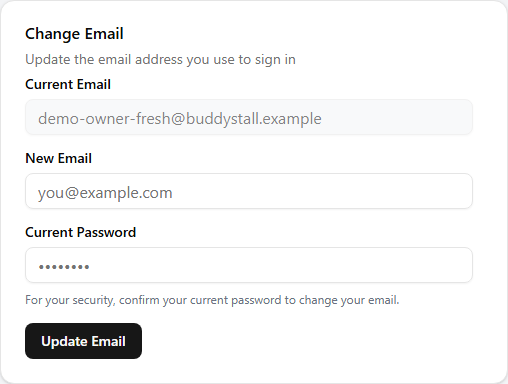
The Change Email card appears for the owner only. Your current email is shown read‑only for reference; type the new email and your current password, then Update Email. The new address takes effect immediately and is what you use to sign in from then on.
Change your password
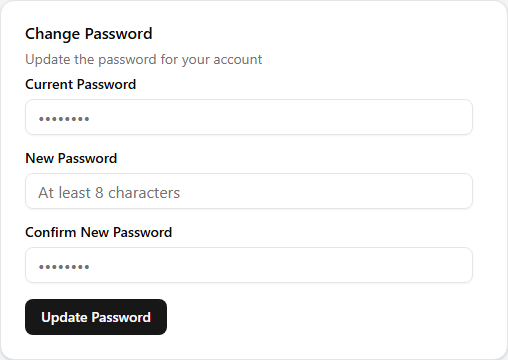
Enter your current password, then your new password twice. The new password must be at least 8 characters, and the two new entries must match. Update Password saves it; you stay signed in.
Self‑service password change is for the owner account. Manager and staff credentials are reset by the owner from Users & permissions.
Delete your account (Danger Zone)
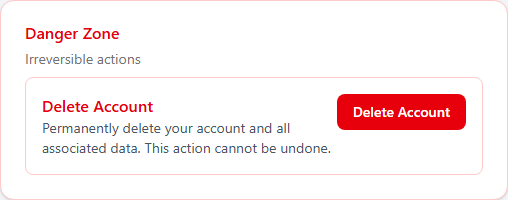
At the bottom of the Account tab, the Danger Zone holds a single irreversible action: Delete Account, available to the owner only. Clicking it opens a confirmation dialog; only when you confirm is anything removed.
Deleting your account removes your login and every store you own — together with their menus, inventory, sales, costs, attendance, and employees — permanently.
Deletion is permanent — there is no trash or restore, and it wipes all of your stores' data for everyone working in them. To remove a single manager or staff member instead, delete that account from Users & permissions.
Billing
The Billing tab shows your subscription, upcoming charges, any invoice that is due, and your past invoices. It is owner only. For the full walkthrough — plans and trial, paying by GCash, and billing history — see Billing & subscription.
Notifications
The Notifications tab controls the emails Buddy Stall sends you. It is owner only. See Email notifications for how to turn it on or off and set the send time.
Connections
Franchise connections
The Connections tab is where you link your store to a franchise — and where you reload its presets or disconnect later. It is always there, even before you connect. For the full walkthrough, see Connect & sync a franchise.
Support
Contact support
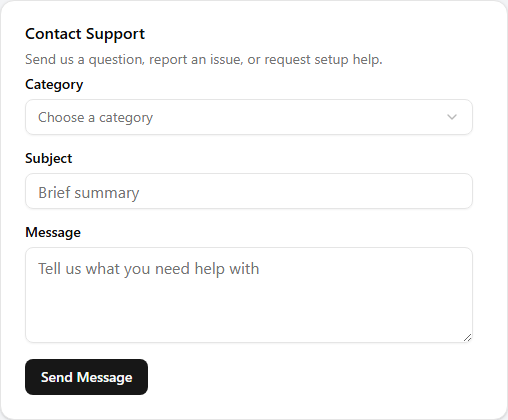
The Support tab has a Contact Support form for reaching us from inside the app. Choose a Category — Setup support, Bug report, How-to question, Feature request, Billing & account, or Other — add a Subject and your Message, then Send Message. We reply by email, so make sure the email on your account is one you check.
Read next
Billing & subscription
Your plan and trial, paying an invoice by GCash, what happens if a payment is late, and your billing history.
Email notifications
Turn the daily low-stock email on or off and choose what time it arrives.
Login & password
Signing in, and who changes which password — owner self-service versus owner-led resets for the team.