
Account settings
Account settings is your own Franchisor account page. Open it from Settings in the Franchisor console. Everything here acts on the login you use to run your brand — the email and password you sign in with, your subscription, and the emails we send you. The page is organised into three tabs: Account, Billing, and Notifications.
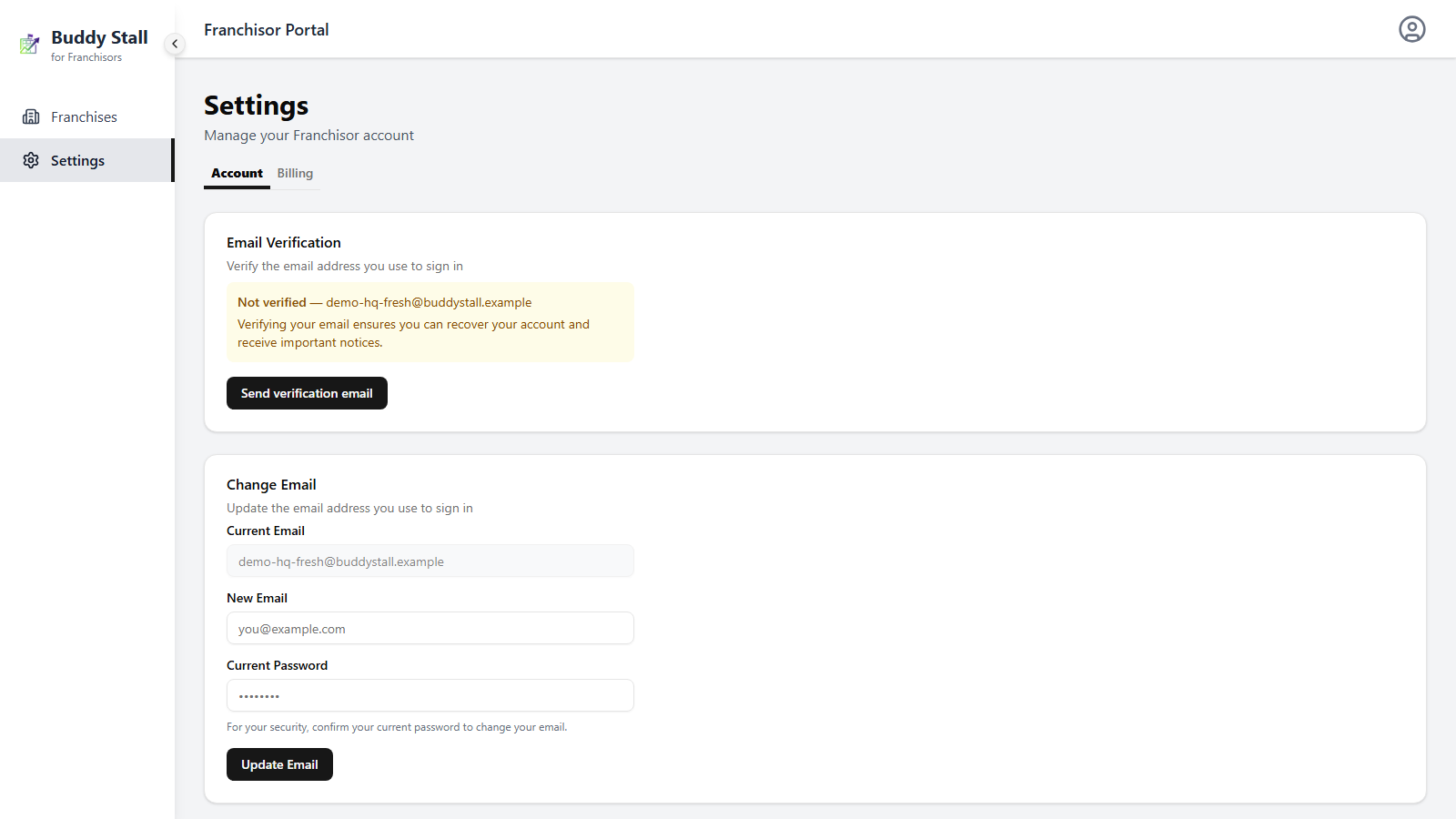
Account
The Account tab is where you verify and change the email and password you sign in with.
Verify your email
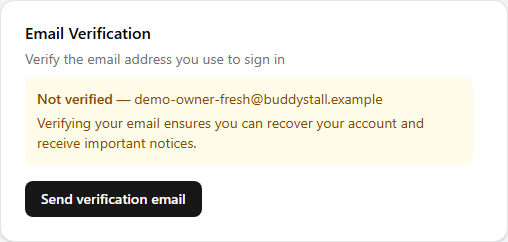
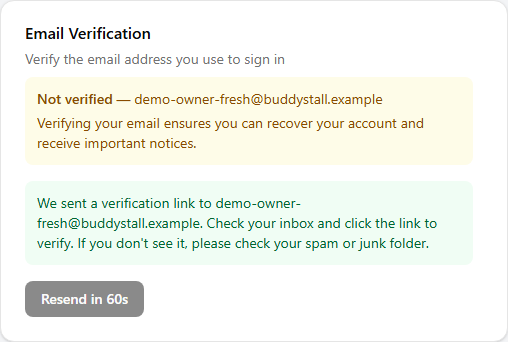
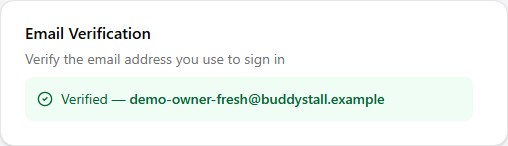
The Account tab opens with an Email Verification card. If your email is already verified it shows a green Verified badge with your address. If not, select Send verification email — we email a verification link to your address; open it and click through to verify, then reload the page to see the updated status. After sending, the button shows a short Resend cooldown before you can send again.
The card moves through three states — before you send, right after you send, and once your email is verified:
Change your email
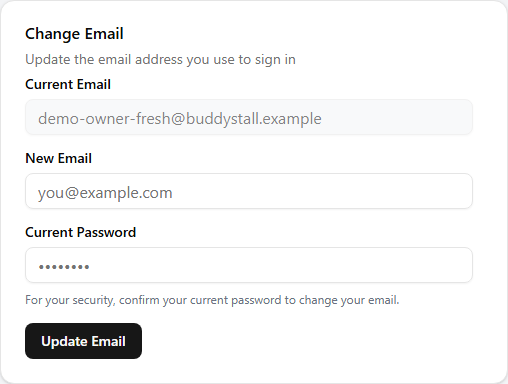
The Change Email card shows your current email read-only for reference; type the new email and your current password, then Update Email. The new address takes effect immediately and is what you use to sign in from then on.
Change your password
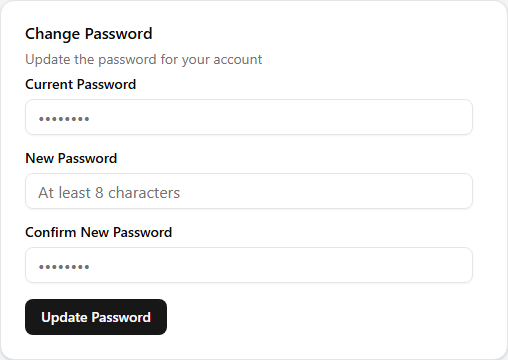
Enter your current password, then your new password twice. The new password must be at least 8 characters, and the two new entries must match. Update Password saves it; you stay signed in.
Billing
The Billing tab shows your subscription, upcoming charges, any invoice that is due, and your past invoices. For the full walkthrough — your plan and trial, paying an invoice by GCash, and billing history — see Billing & subscription.
Notifications
The Notifications tab holds one setting: whether we email you when one of your orders moves.
Order update emails
Every stockhouse order is a hand-off between you and a buyer — a connected store, or an approved partner supplier buying from you. You act on your side from the Orders page, the buyer acts on theirs, and the order changes hands each time. This switch decides whether we email you when the buyer acts.
When it's on, we email you when a buyer:
- places a new order — including one that arrives through your public order form
- cancels an order before you ship it
- approves or rejects a quantity change you proposed
- confirms the delivery — either received as shipped, or flagged as a discrepancy because what arrived didn't match what you sent
Each email names the order and its new status and links straight to that franchise's Orders page, so you can keep up without watching it. The steps you take yourself — accepting, shipping, invoicing, marking delivered — don't email you; they email the buyer.
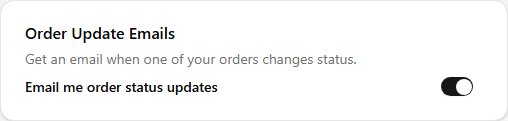
Email me order status updates is a single switch and is on by default. Your change saves on its own as soon as you flip it — there is no Save button. Turning it off stops the emails only; the orders themselves keep moving, and the Orders page still shows everything that needs your attention.
Emails go to the address on your Franchisor account, so keep it one you check — and verify it on the Account tab. For how the orders behind these emails work, see Orders.