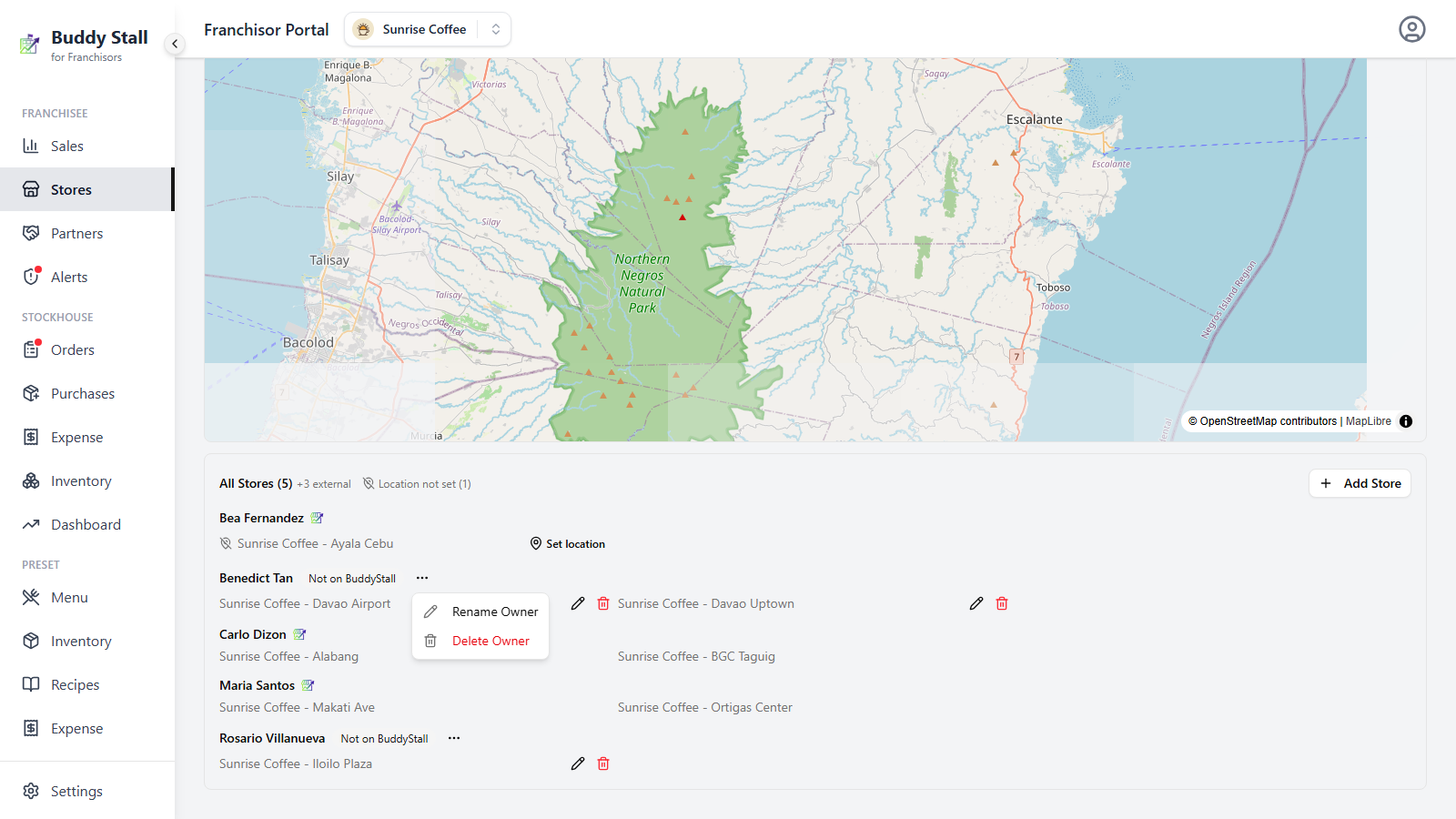
Stores map
Stores in the sidebar shows the franchise's physical network: how many stores and owners the brand has, a map with a pin for every located store, and a list where you can fill in missing locations. It can also carry stores that are not on BuddyStall, so the map reflects the whole brand — not just the part already on the platform.
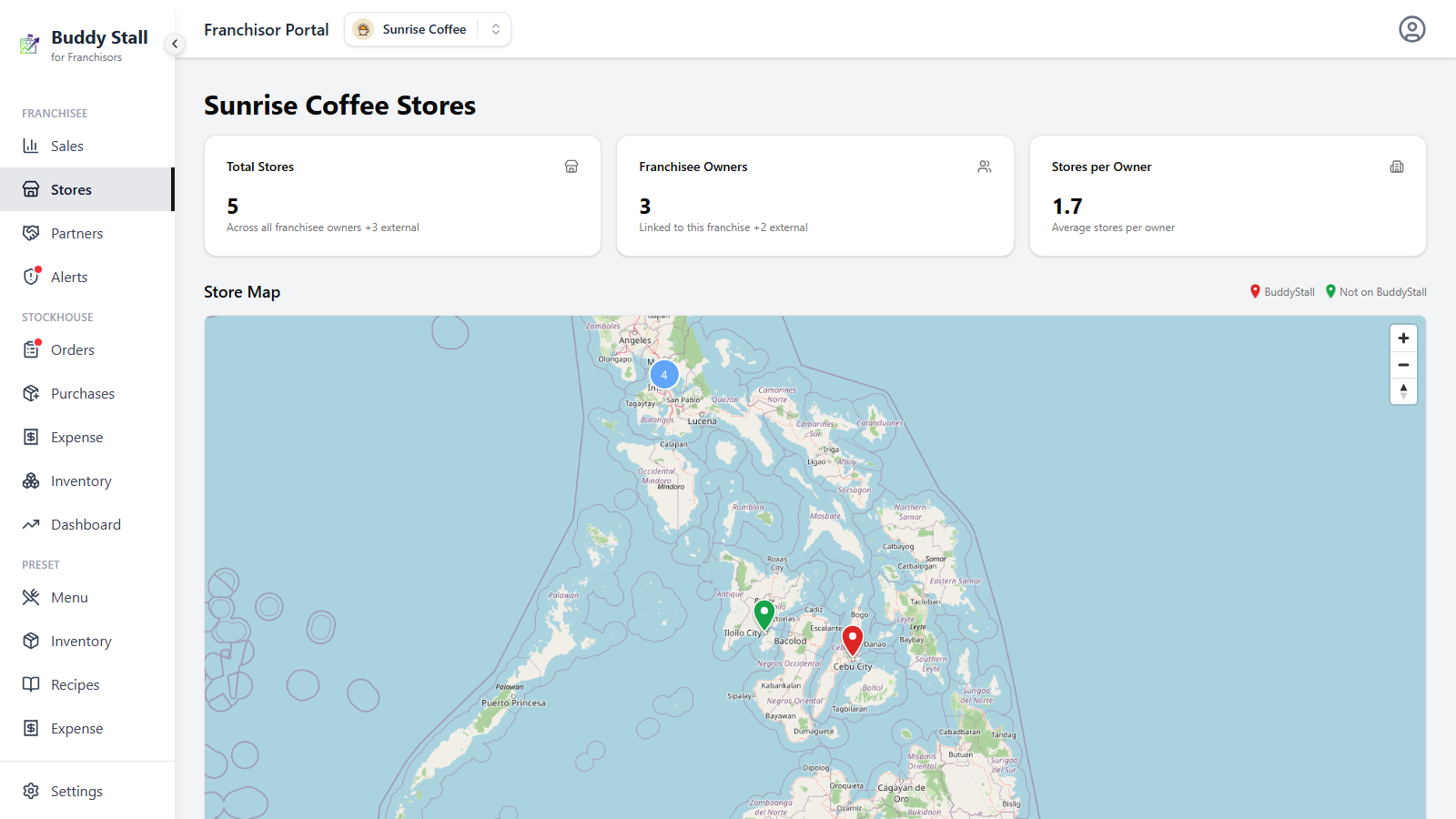
Network counts
Three cards at the top summarise the network:
- Total Stores — across all franchisee owners.
- Franchisee Owners — owners linked to this franchise.
- Stores per Owner — the average.
When the franchise has external stores, the first two cards append the extra count — for example +2 external.
Store Map
The map plots a teardrop pin for every store that has a location, and fits itself to show them all. The legend above it explains the two pin colours: red for BuddyStall stores, green for stores marked Not on BuddyStall.
- Clusters — where stores sit close together, pins merge into a numbered circle. Click a cluster to zoom in and split it apart.
- Pin popup — click a single pin to see the store's name and its owner (external stores also say Not on BuddyStall).
If no store has a location yet, the map area shows No stores have a location set yet. instead.
The store list
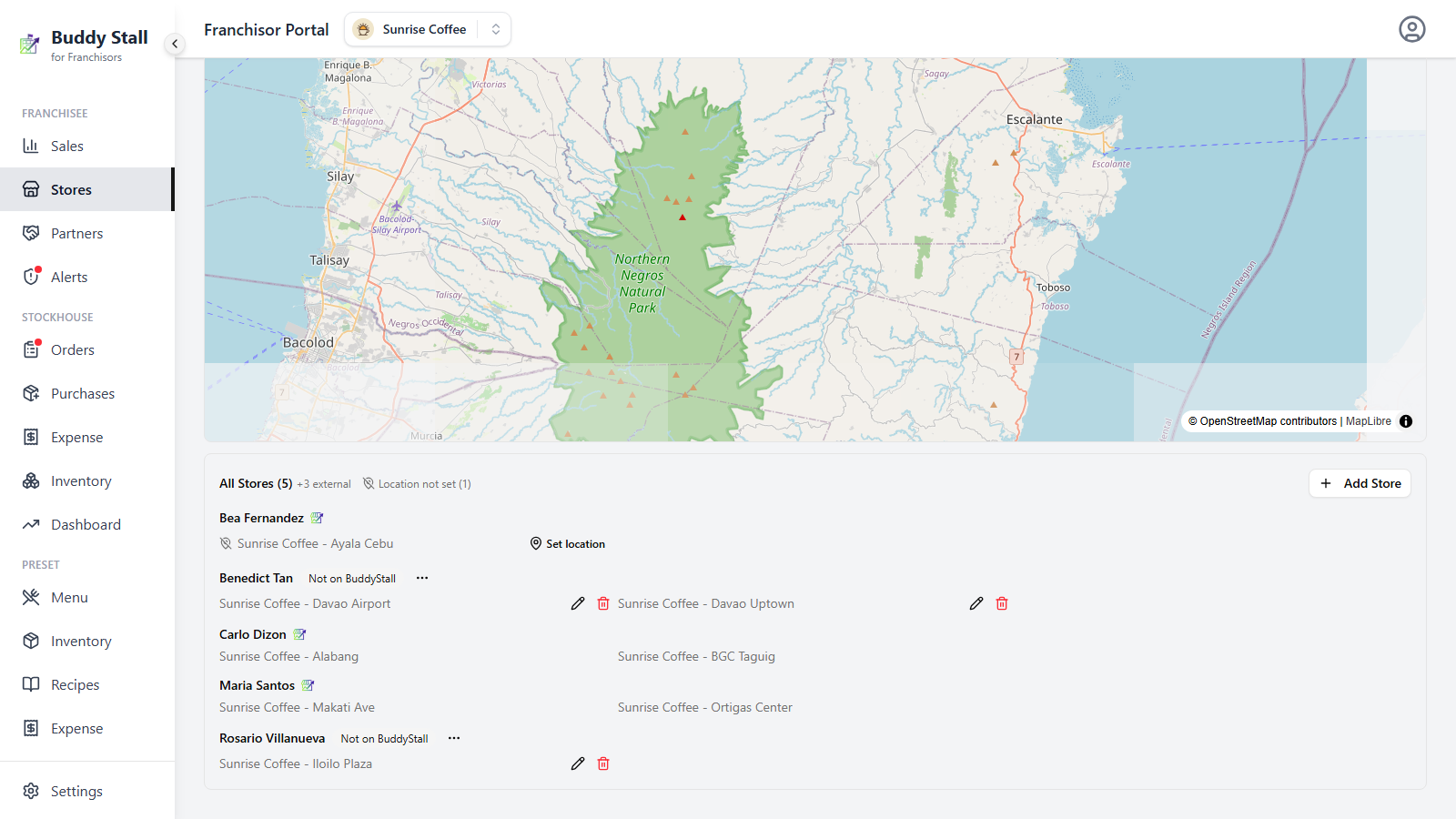
Below the map, All Stores lists every store grouped by its owner. Groups that still have a store without a location sort to the top — they are the ones that need your attention — and the header shows a Location not set count when any remain.
Set a missing location
A store only appears on the map once it has coordinates. Normally the owner sets them — dropping a pin is part of creating or editing a store on their side. Until then the store shows a Location not set marker in the list, with a Set location button so you can fill it in yourself.
Click it to open the Set Store Location dialog — a map with a search box:
- Type a place, street, or area into the Search box and press Search (or Enter). The map flies to the best match.
- Click the map at the exact spot of the store. A red pin drops and the
coordinates appear below it as
Location set: <latitude>, <longitude>. Click again to move the pin, or Clear to remove it. - Click Save Location. The button stays disabled until a pin is placed.
The store now carries coordinates and appears as a red pin on the map, and it leaves the Location not set count in the list header.
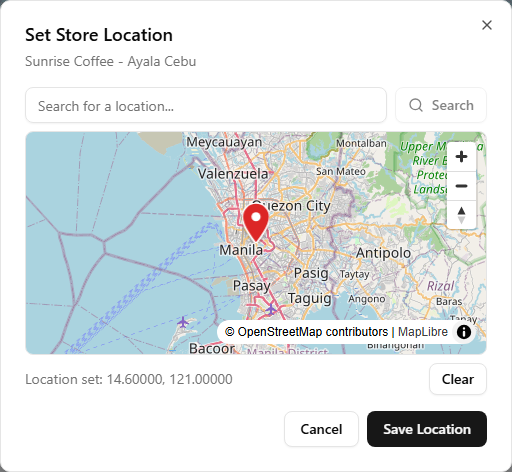
Searching only moves the map — it does not place the pin. The store's location is whatever point you click on the map, so search to get close, then click the precise spot.
Unlike the owner's own store form, this dialog only sets the map pin — there is no address field to fill in here.
External stores (Not on BuddyStall)
The Add Store button records a store that exists in the brand but whose owner is not on BuddyStall — useful while you are still rolling the platform out, so the map shows the real footprint of the franchise. You enter the owner, the store name, and its location; the store appears as a green pin and the owner as a list group with a Not on BuddyStall badge.
External entries are yours to maintain: the ⋯ menu on the group renames or deletes the owner, and each store row has edit and delete actions. Once that owner joins BuddyStall properly, delete the external entries — their real stores take over.