
Preset inventory
The preset inventory is the brand's inventory standard — the stock items every connected store tracks, with their units, costs, and low-stock levels, defined once for the franchise. It is also what preset recipes draw from, so build this catalog before wiring recipes.
This walkthrough defines the inventory items and decides, per item, whether stores can buy it anywhere or only from you.
1. Open the preset inventory
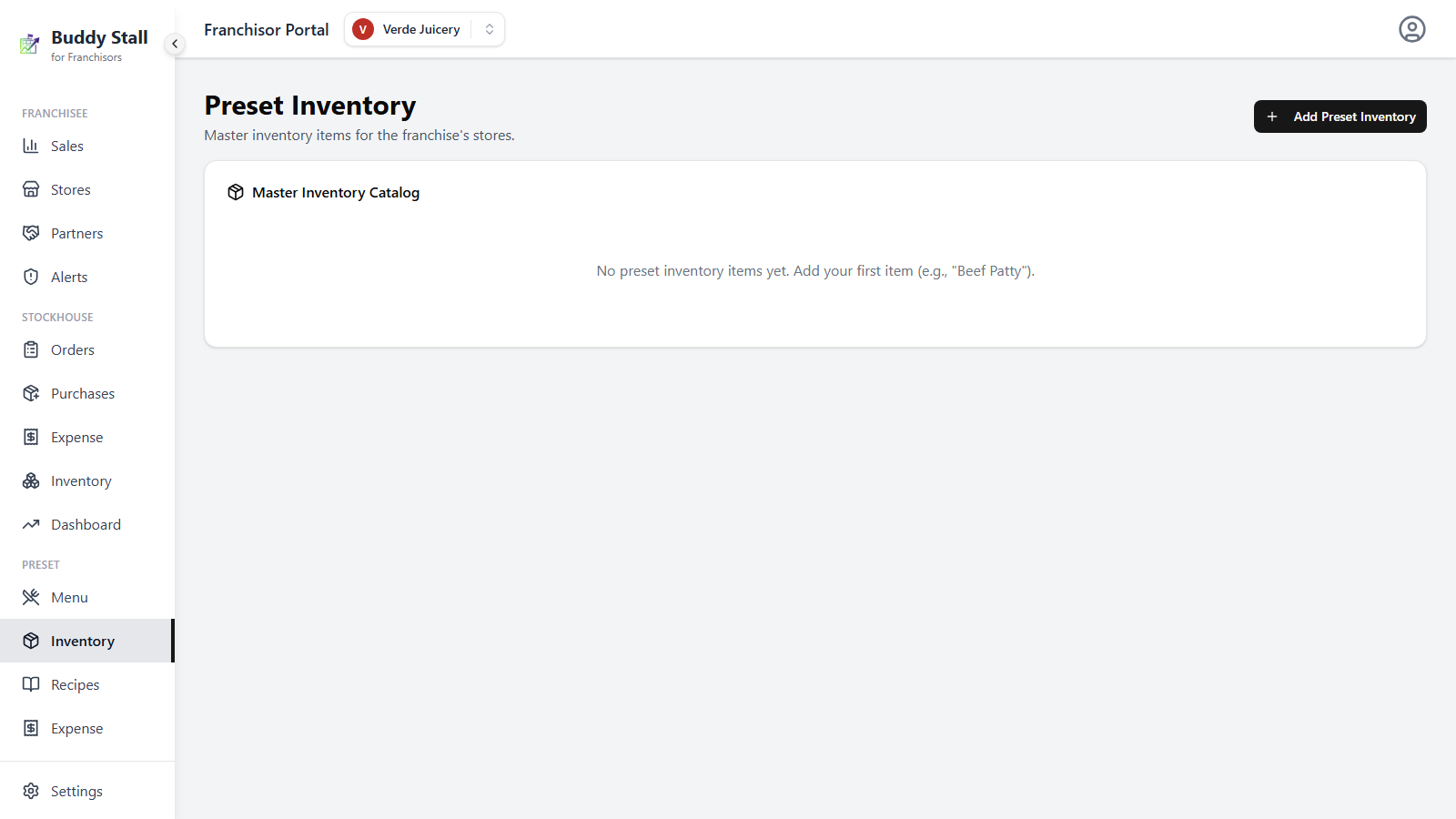
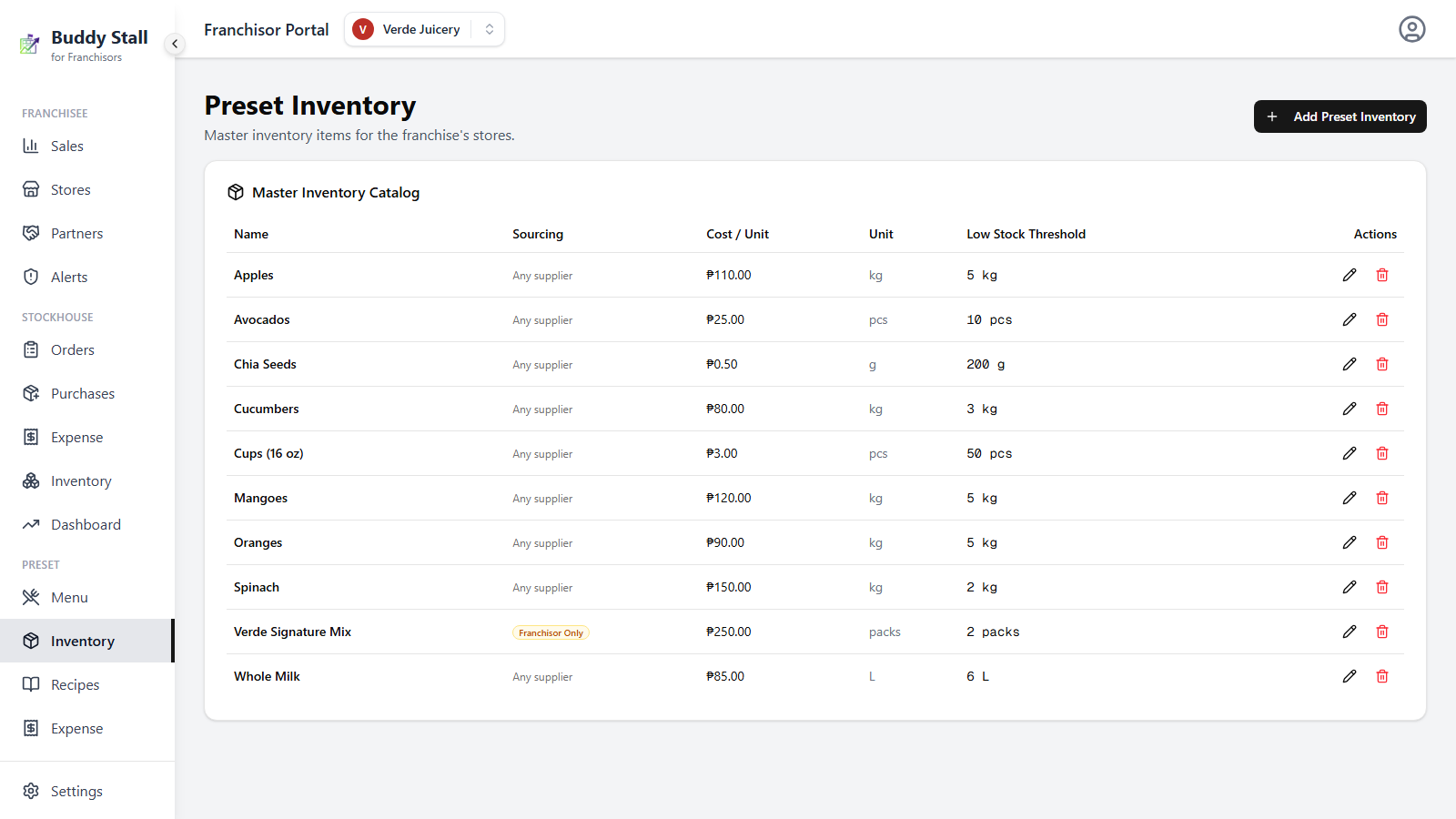
Open the franchise you want to work on. In the sidebar, under the Preset group, click Inventory. The Preset Inventory screen lists the Preset Inventory Catalog — empty at first, with one row per inventory item once you start adding: Name, Sourcing, Cost / Unit, Unit, and Low Stock Threshold.
2. Add a preset inventory item
Click Add Preset Inventory in the top-right. The New Preset Inventory dialog asks for:
- Name — required. The inventory item as stores will see it (e.g. "Beef Patty", "Cola Syrup").
- Unit — required. How stock is counted, stored, and consumed (kg, g, L, ml, pcs, packs, cans, bottles, containers, rolls, pouches, boxes, cases).
- Low Stock Threshold — optional, defaults to 5. The level — in the stock unit — at which the item starts flagging low on a store's inventory screen.
- Content per unit — optional; appears only for packaging units. What one unit holds, e.g. 1 bottle = 1 L.
- Order unit — optional. A coarser unit the item is bought in, with how many stock units it holds, e.g. 1 case = 12 bottles. For items you supply, this is the unit stores order from you in.
- Cost per Unit — the brand default cost, and the wholesale price stores are charged when they order the item from you. Once an order unit is set the label takes its name, e.g. Cost per case.
Only Name and Unit are required. Repeat for every inventory item the brand tracks; you can come back and add more later.
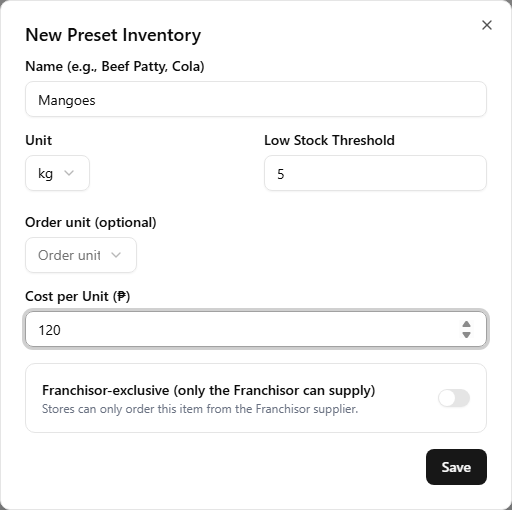
Unit, Content per unit, and Order unit all describe how the inventory item is measured, and Cost per Unit is read against them — the next section explains how they differ and when to set each.
How an inventory item is measured
Three of the dialog's fields control measurement. They are easy to confuse because all three talk about "units," yet each answers a different question:
- Unit (required) — what do stores count stock in? (e.g. bottles). Every item has one.
- Content per unit — what is inside one stock unit? (e.g. 1 bottle = 1 L). Set it for packaging units that are sometimes restocked by their contents.
- Order unit — how is it bought in bulk? (e.g. 1 case = 12 bottles). Set it when the counting unit is finer than the purchasing unit.
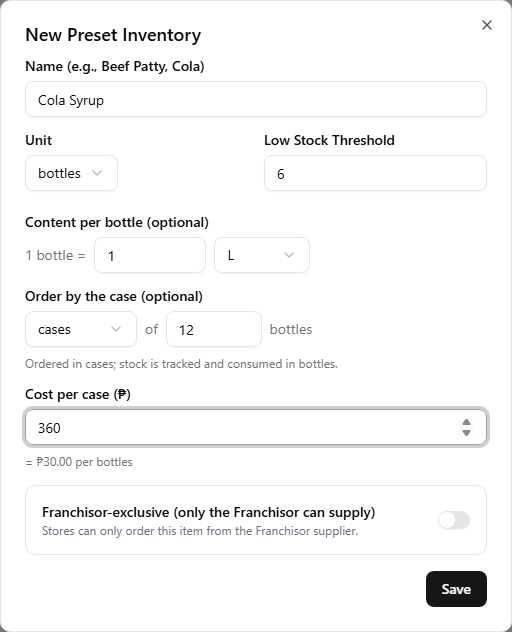
The dialog rewrites its own labels from the units you pick, so every row reads back in your own words. Take the example below — counted in bottles, ordered by the case: choosing bottles brings up the Content per bottle row; choosing an order unit adds the size field (of 12 bottles) beside it, a line confirming "Ordered in cases; stock is tracked and consumed in bottles", and a cost field renamed Cost per case. Cases and bottles are only this walkthrough's example; the labels follow whichever units you pick.
Unit — the stock unit
The unit the inventory item is counted, stored, and consumed in — and the only one of the three that is required.
- Used everywhere downstream. Stocktakes count in it, preset recipes deduct it on every sale, waste is logged in it, and the Low Stock Threshold is measured in it.
- Two families. A base unit (kg, g, L, ml, pcs) to track a raw measure directly, or a packaging unit (packs, cans, bottles, containers, rolls, pouches, boxes, cases) to count whole containers.
- Pick what a store counts on the shelf. It is not converted later — a count of "12" stays "12" even if the unit changes.
Content per unit — what one unit holds
Optional, and shown only when the Unit is a packaging unit. It records the contents of one stock unit in a base measure, e.g. 1 bottle = 1 L. The dialog labels the row with the real unit — Content per bottle.
- Easier restocking for stores. When a store records the paired expense it can enter the delivered quantity in either the stock unit (bottles) or the content measure (L), and the app converts: type "18 L" and it stores the right number of bottles.
- It becomes a catalog sub-line under the Unit column of the Preset Inventory Catalog.
- Leave it blank when a unit has no meaningful inner measure — you just count pcs of buns.
Order unit — the purchase unit
Optional. Use it when the unit stores count is finer than the unit they buy. Pick any packaging unit as the order unit and say how many stock units one of them holds — cases of 12 bottles, in the example used below.
- Ordering and receiving happen in the order unit. Restock converts the received amount into stock units automatically (2 cases → 24 bottles). Stock is still tracked and consumed in the stock unit.
- It sets the order size stores buy from you in. When a connected store places an order with you for this inventory item, the order form asks for whole order units at the order-unit price — with cases of 12, they order cases and cannot order a single bottle. Set it to the pack you actually ship from your StockHouse.
- Leave it blank when the item is bought in the same unit it is counted in — the common case, and then stores order it in the stock unit.
Cost per Unit — and Cost per order unit
The cost field does double duty: it is the brand's default cost for the inventory item, and — for anything stores order from you — the wholesale price you charge them. What you type depends on whether an order unit is set:
- No order unit — the label reads Cost per Unit. Type the price of one stock unit (₱120 per kg).
- With an order unit — the label takes that unit's name, e.g. Cost per case. Type the pack price (₱360 per case of 12 bottles), and the dialog derives the per-stock-unit cost beneath the field — = ₱30.00 per bottle. That derived figure is what the app stores and what the catalog's Cost / Unit column displays.
For a store's own bookkeeping this is a default it can edit. On an order placed with you it is not: the line is priced from this field at the moment the order is created, and the store cannot type its own price. Changing the cost here therefore affects future orders only — orders already placed keep the price they were created with.
For an item stores may buy locally, the cost is only a starting figure: it loads into their catalog as their own cost basis, and they can adjust it to match what they actually pay. That is why it stays optional here — and why it becomes required the moment you make yourself the only supply source, which is the next step.
3. Decide the sourcing
At the bottom of the same dialog sits the Franchisor-exclusive (only the Franchisor can supply) switch:
- Off (default) — the item shows Any supplier in the catalog. Stores restock it however they like: their own suppliers, direct expense entries, or orders to you.
- On — the item carries an amber Franchisor Only badge. Stores can only restock it by ordering from you; recording a direct expense against it is disabled in the store app, and its unit, pack content, and cost are locked on the store side ("Managed by the Franchisor" / "Set by HQ"). Switching this on makes Cost per Unit required and registers the item in your StockHouse automatically, so it is orderable straight away — an exclusive item stores cannot buy from you would leave them no way to restock it at all.
Franchisor-exclusive is the right setting for proprietary inventory items that must come from your StockHouse. For everything a store can reasonably buy locally, leave the switch off — stores keep control of their own cost and sourcing, and you avoid becoming the bottleneck.
What connected stores receive
When a store loads the preset, every inventory item here lands in the owner's master inventory carrying your franchise's logo badge.
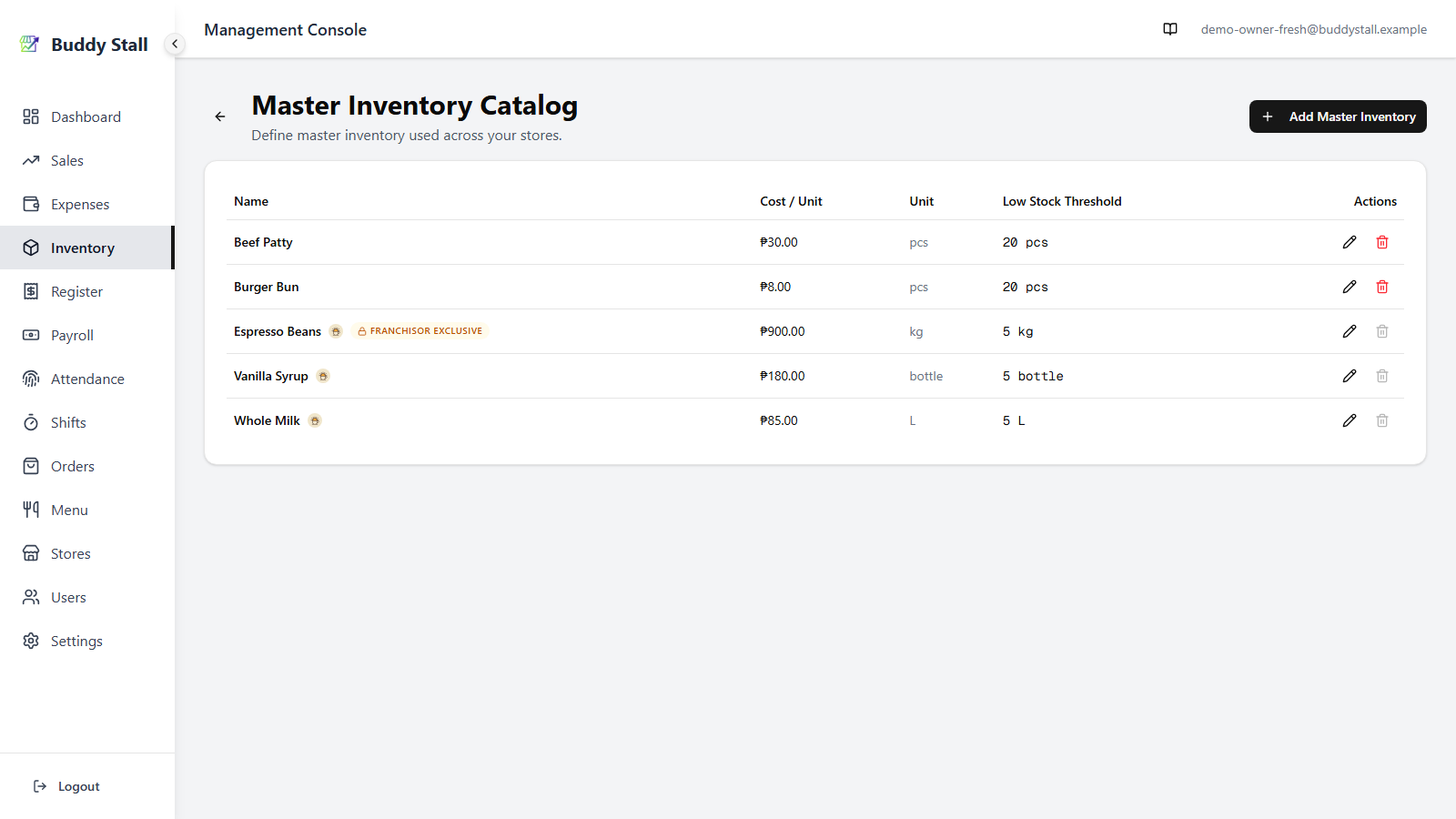
On top of that:
- A paired expense item is created automatically. Each preset inventory item arrives with a Material expense item wired to it, so a purchase recorded in the store flows straight into its stock — you do not need to add these on the Preset expenses page.
- Counts stay the store's own. Stores set their opening stock and run their own stocktakes; the preset only defines what to track, never how much is on hand.
- Stores can edit, and can drop what is not exclusive. A store can adjust an item's name, category, threshold, and cost, and may remove the item from its own list the same way it removes any other ingredient. What it cannot drop is a franchisor-exclusive item: those are fixed in every store, and cannot be edited, deleted, or archived there. That is the point of marking an item exclusive — it is the one lever that guarantees you can see stock and consumption for it everywhere.
- Removing an item from the preset reaches connected stores. Deleting a preset inventory item asks each store to accept the removal on its next reload — see How updates reach stores.
Removing an item
The trash icon checks whether any connected store still carries the item first. If none does, it is deleted outright along with any preset recipes that reference it. If a store does, the row is archived instead — the confirm names how many stores — and it moves into an Archived (removed while still in use) section below the catalog, each entry keeping a Restore control. The id has to survive so those stores can be asked about the removal on their next reload; see How updates reach stores.
Publishing changes
Edits here save immediately and mark the franchise as having an update available; each connected store re-pulls the preset from its own Franchise Connections settings. See How updates reach stores.