
Purchases
Recording a purchase is how stock enters the StockHouse. It does two things at once: it adds the quantity to the item's stock — a purchase entry in the inventory ledger — and it records the amount as a StockHouse cost on the Dashboard. A shipment moves stock the other way, out to a store's order.
1. Open the screen
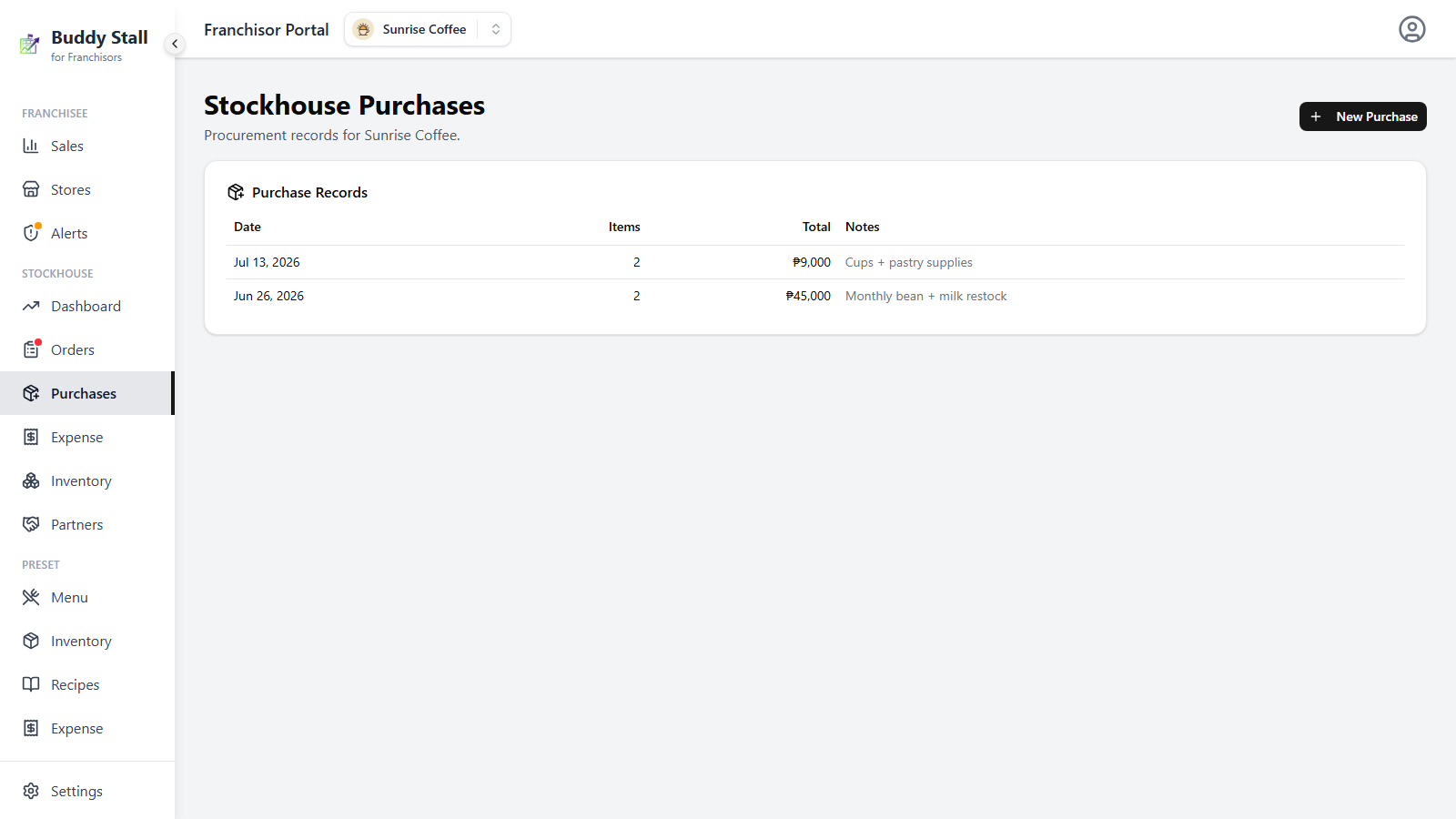
In the sidebar, under StockHouse, click Purchases. The Stockhouse Purchases screen opens with the subtitle "Procurement records" and a Purchase Records card listing every purchase so far: Date, Items, Total, Notes. Before the first purchase the card reads "No purchases yet". New Purchase, top-right, opens the recording dialog.
2. Record a purchase
In the New Purchase dialog:
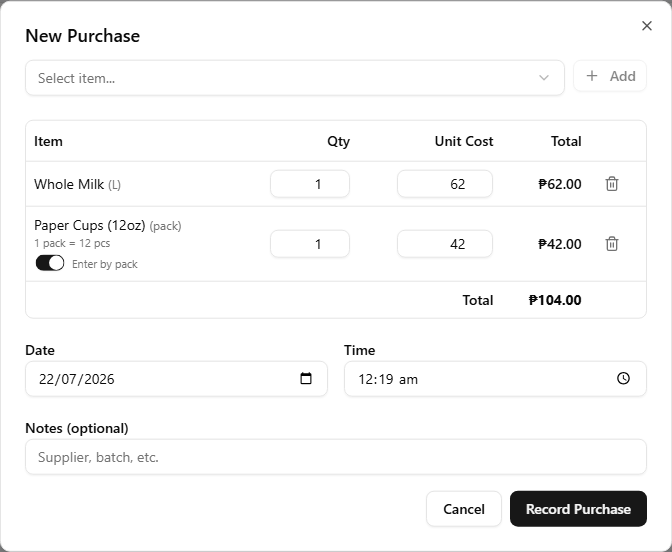
- Pick an item from the Select item... dropdown and click Add to put it on the purchase. Repeat for every item this purchase covers.
- Only items registered to the StockHouse appear in the dropdown. If nothing is registered yet, the dialog says so and points you at the Inventory page instead. The same rule is enforced on save — a purchase for an item that is not registered is rejected.
- Added items form a line table — Item, Qty, Unit Cost, Total — with a running Total row at the bottom and a delete control on each line.
- Unit Cost prefills from the item's Default Purchase Cost, but you can override it per line when the real price differed this time. Overriding it here does not change the item's default cost — edit that on the Inventory screen instead.
- Items bought in a coarser order unit (e.g. Paper Cups counted in pcs but bought by the pack of 12) start their line in that unit — Qty and Unit Cost mean packs and price per pack, with a 1 pack = 12 pcs reminder under the item name. An Enter by pack switch on the line flips it back to stock-unit entry, converting what you typed so the amount stays the same. Either way the record is stored per stock unit. Order units are set up per item on the Inventory page.
- Date and Time prefill with the current moment. Backdate them when you are catching up on paper records — a future date is rejected.
- Notes (optional) — supplier, batch, or anything else worth recording against this purchase.
Click Record Purchase to save.
3. After saving
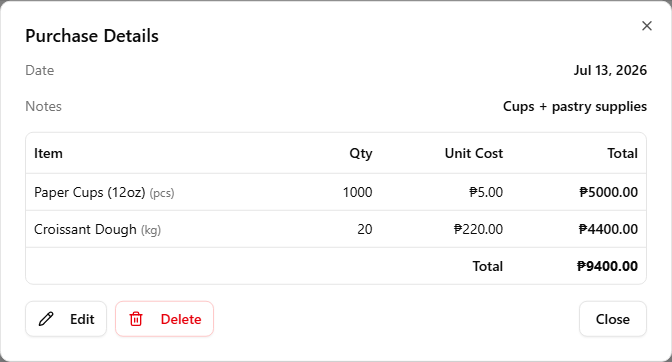
The purchase appears as a new row in Purchase Records. Clicking a row opens the Purchase Details dialog with the same line breakdown — quantities and costs shown per stock unit — and, in its footer, Edit and Delete for correcting a record that was entered wrong.
4. Edit a purchase
Edit reopens the purchase in an Edit Purchase dialog that works just like New Purchase: change quantities and costs, add or remove lines, move the Date and Time, reword the Notes, then Save Changes. Stock and the inventory ledger adjust by the difference between the old and new record, and the Dashboard cost follows the new amounts and date.
5. Delete a purchase
Delete asks for confirmation, then removes the purchase. The stock it added is taken back out — a matching negative purchase entry appears in the inventory ledger, so the trail stays visible — and its amount drops out of the Dashboard cost. Deleting cannot be undone; if a purchase was removed by mistake, record it again.
If the stock a purchase brought in has since been shipped out, editing its quantity down — or deleting it — could push the item below zero. Such a save is rejected, naming the item. Check current stock on the Inventory screen first.