
Expenses
Recording an expense logs an operating cost of running the warehouse — rent, utilities, delivery fuel, staff wages, anything that is not a stock purchase. Expenses are one of the two cost streams the Dashboard subtracts from revenue to get Net Profit; unlike a purchase, an expense moves no stock at all.
1. Open the screen
Open a franchise and, under StockHouse, click Expense. The
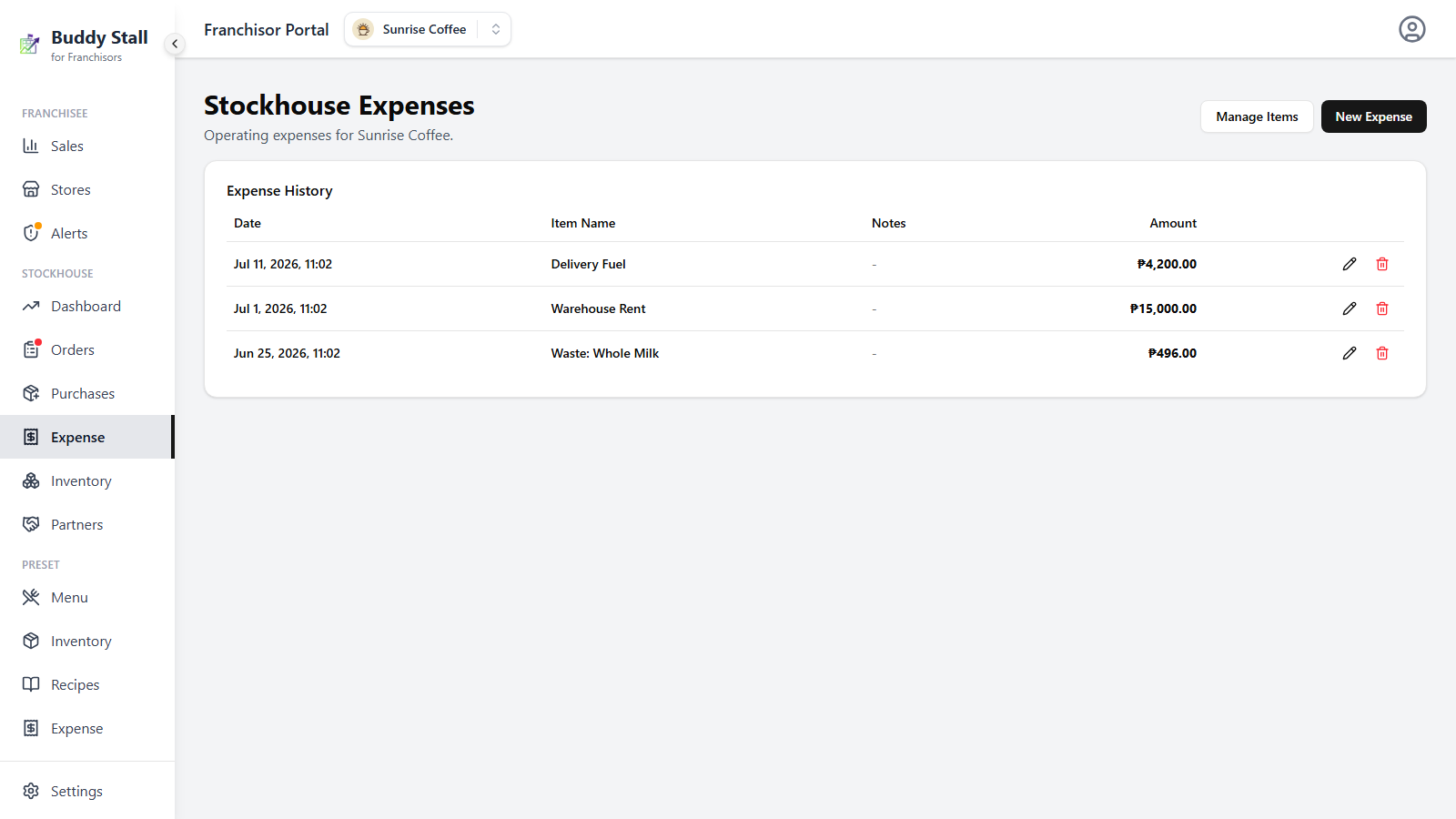
Stockhouse Expenses screen opens with the subtitle Operating expenses for {franchise name}. and two actions top-right: Manage Items and New
Expense.
Below them, the Expense History card lists every expense recorded so far, newest first: Date, Item Name, Notes, Amount. Rows are paginated 50 to a page, with a "Showing X - Y of N expenses" line once there is more than one page. Before the first expense the card reads "No expenses yet."
2. Set up expense items
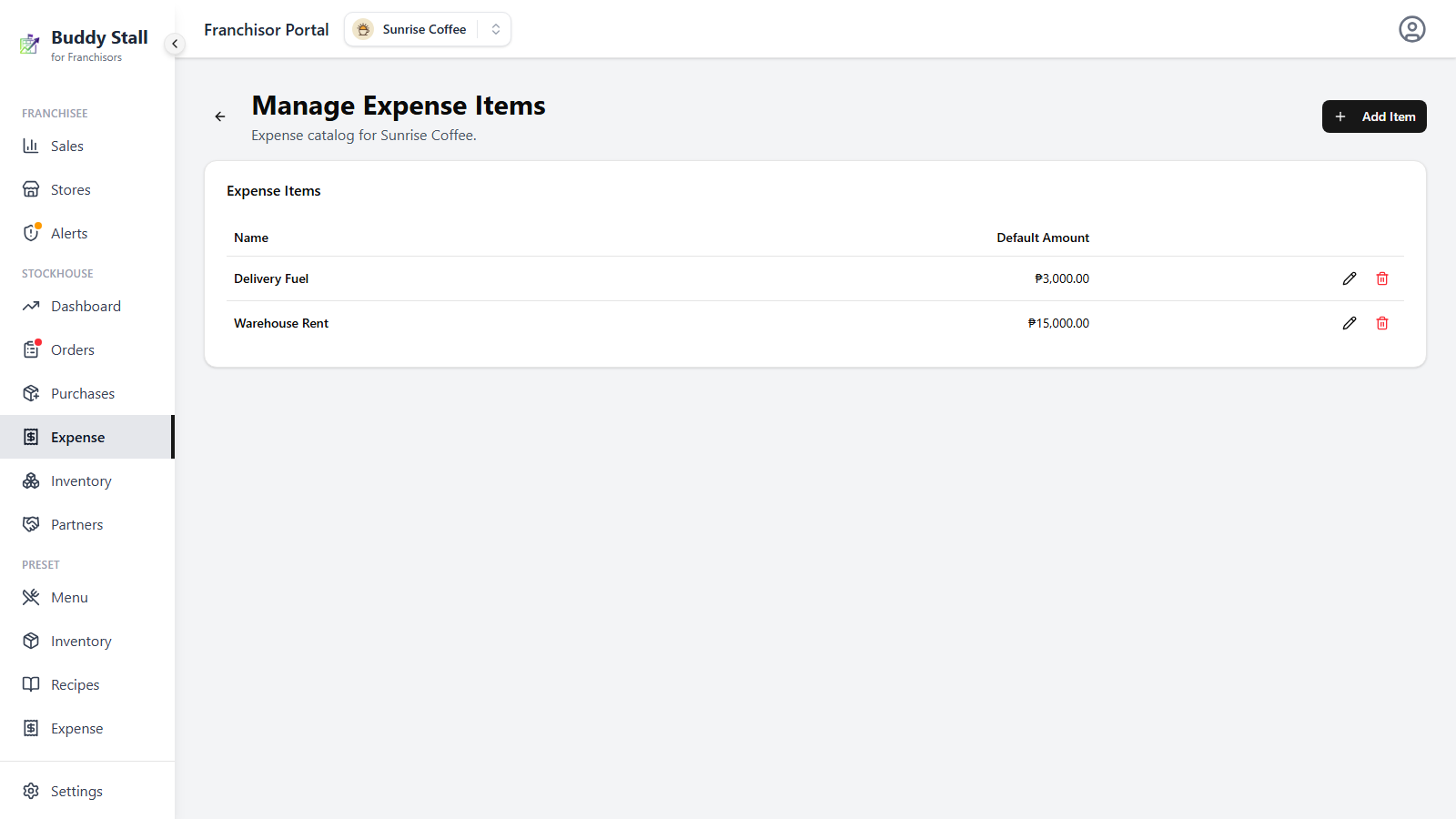
Recording draws from a catalog of expense items — reusable categories with a default amount: rent, utilities, delivery fuel, staff wages, whatever recurs. Set these up first: click Manage Items to open the Expense Items screen, which lists each item's Name and Default Amount with an add, edit, and archive action per row.
Archiving an item retires it from the picker without touching expenses already recorded against it.
3. Record an expense
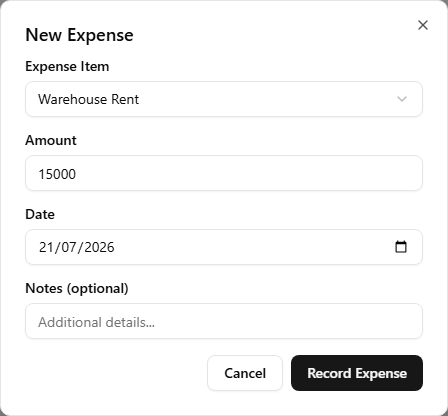
Click New Expense. The dialog asks for:
- Expense Item — a select of the franchise's expense items. Choosing one prefills Amount from that item's default. If no expense items exist yet, the dialog says so instead of showing the select, and points you at Manage Items — go back to step 2.
- Amount — required; override the prefilled default when this entry differed. Overriding it here does not change the item's default — edit that on the Expense Items screen instead.
- Date — required, defaults to today. Backdate it when you are catching up on paper records.
- Notes (optional) — anything worth recording against this expense.
Click Record Expense to save. The expense appears as a new row in Expense History.
4. Edit an expense
Every row in Expense History carries a pencil icon. It opens the Edit Expense dialog, where Amount, Date, and Notes can change — the Item Name is fixed. Recorded the wrong item? Delete the row and record a new one instead. Click Save to apply.
5. Delete an expense
The trash icon on a row asks for confirmation, then removes the expense for good — deleting cannot be undone, and the amount drops out of the Dashboard's cost figures.
Two kinds of expense here are created automatically, and each bends the
edit and delete steps above. The recurring BuddyStall Subscription Fee —
booked when your platform bill is paid — is fully locked: editing or
deleting it fails with "This expense was created automatically and cannot be
edited/deleted." A Waste: {item name} row, created when you log waste
on the Inventory screen, is
editable but constrained — it opens an Edit Waste Record dialog where
only the date and notes can change (the amount is derived from the wasted
quantity and stays read-only), and deleting it reverses the stock
deduction, putting the units back into inventory. A waste row and its
stock movement never drift apart. Only ordinary rows you entered by hand are
freely editable.