
Partner suppliers
Not everything your stores need has to pass through your stockhouse. A partner supplier is a third-party supplier you bring into your franchise — a bakery, a dairy, a packaging vendor — who sells to your stores directly, while you stay in control of which stores are allowed to buy from them. This guide covers registering a partner and authorising your stores to use one.
What a partner supplier is
A partner supplier gets their own BuddyStall login and their own supplier app, where they manage their catalogue and fulfil orders — the same order pipeline your stockhouse uses, run by them. Your role is the gatekeeper: you register the partner, and you approve each store that wants to buy from them. You don't handle their orders, but the stock they supply still counts toward your compliance picture.
Most partners sell to your stores. But a partner can also be a customer of your stockhouse — buying from you the same way a store does. When they do, their order shows on your Orders board with a Partner badge, and the flow is identical to any other order.
Register a partner
Open Partners from the sidebar and click Create Partner. Enter the partner's name, contact details, and a login for them — the email address and the password they'll sign in with. Saving creates their account and issues an invite code — the key a store owner uses to link up.
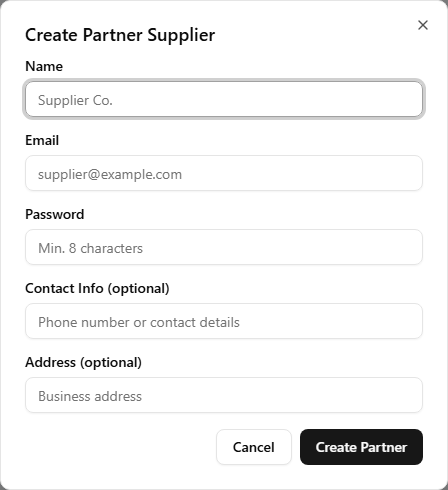
Saving also emails the partner their sign-in details automatically — a link to the supplier sign-in page, the login email, and the password you just chose. You don't have to relay the credentials by hand; the confirmation in the dialog tells you which address the mail went to.
Because you pick the initial password, it is written into the message so the partner can sign in without a call. The email asks them to replace it after their first sign-in, which they do themselves from Settings in their supplier portal — you never need to hold their password long-term.
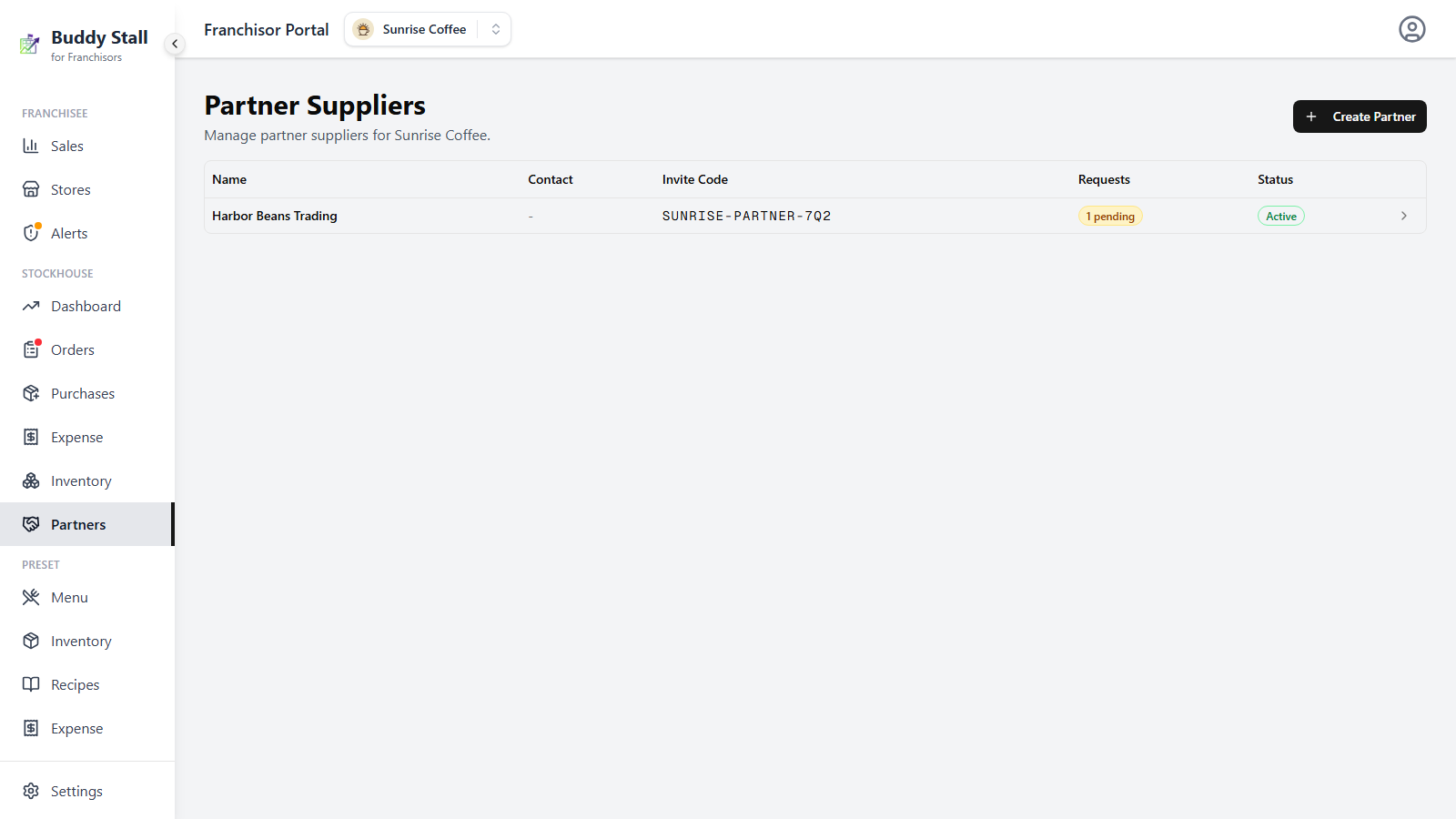
The Partners list shows every partner with their invite code, a count of pending requests, and their status (Active or Archived).
Open a partner's page
Everything you do to one partner after registering it happens on its own page. Click the arrow (›) at the right end of its row — or the partner's name — to open it.
The page opens on the partner's name, with Archive in the top-right corner (see Archive a partner), and four cards stacked beneath it.
 1234
12341 Profile
The details you entered on the create form — name, contact, address — plus the partner's login email and the date the account was created. If the partner is archived, an Archived badge sits in this card's corner.
2 Invite Email
The partner's sign-in details, and the button that mails them out again. The first invite goes out on its own when you create the account; this card is what you use afterwards. Resend Invite Email opens two choices:
- Leave the password blank — the partner gets the sign-in link and their login email again, and their existing password keeps working. Use this when the first mail was lost or went to spam.
- Enter a new password — the account's password is reset to what you typed and the new one is included in the mail. Their old password stops working immediately. This is the recovery path when a partner has lost theirs.
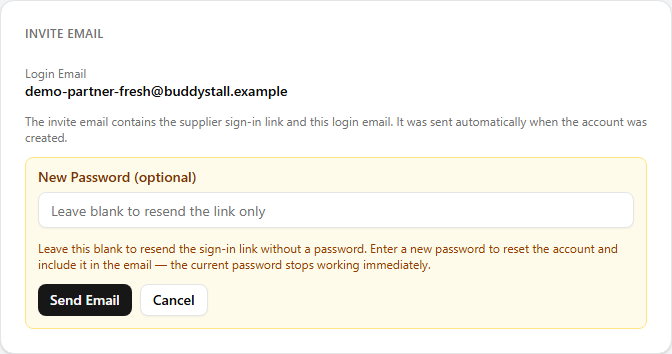
BuddyStall never stores the password in readable form, so a plain resend can only repeat the sign-in link and the email address. If the partner has actually forgotten their password, you must set a new one here.
3 Invite Code
The code a store owner enters to request a link to this partner. Copy it to share, or Regenerate Code to mint a new one — useful if the old code spread further than you intended. Regenerating doesn't touch links you've already approved; it only invalidates the old code for new requests.
4 Authorization Requests
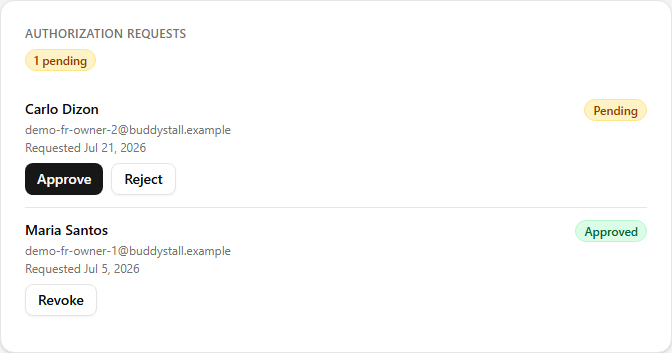
Every store owner who has asked to buy from this partner, newest first, each with its status — Pending, Approved, Rejected or Revoked — and the actions that apply to it. A pending count also shows at the top of the card and next to the partner in the list. Deciding those requests is the next section.
Authorise a store to buy
A store owner enters your partner's invite code on their side to request a link. That request lands on the partner's detail page as Pending, showing who's asking. You decide:
- Approve — the partner is added to that store owner's supplier list, and their stores can start ordering from it.
- Reject — decline the request (you can leave a note).
- Revoke — later, withdraw a link you'd approved; the partner drops off that owner's supplier list.
The other half of this exchange happens in the store's own app: the owner adds the partner from their Suppliers page, and watches the same request turn Pending → Approved. If a store owner asks you how to send the request, or what their side shows once you've decided, point them at Managing suppliers → Suppliers from your franchise in the store documentation.
Once a store is authorised, its orders to the partner run entirely between them — those orders don't appear on your Orders board. What you control is the link: which stores may buy from which partner, granted and revoked here.
What partner supply still tells you
Even though you don't touch partner orders, the stock a partner supplies isn't invisible to you. For items you've marked Franchisor-exclusive, deliveries from an approved partner count toward a store's sourcing — the same measure that flags off-book buying — so an exclusive item sourced through an authorised partner reads as compliant, not as a gap. See Sales vs Orders for how sourcing is judged.
Archive a partner
When you no longer work with a supplier, archive it from its detail page. An archived partner stops issuing new links; you can unarchive it later if the relationship resumes. Archived partners stay in the list, marked as such, so the history is never lost.
Read next
How orders flow
The order pipeline a partner buying from your stockhouse follows — and the badges that tell buyers apart.
Compliance & alerts
How partner-supplied stock counts toward a store's sourcing, and what off-book buying looks like.
Central inventory
Your own stockhouse stock — the other source your stores order from, and where exclusivity is set.