
Accept & fulfill orders
This guide walks a franchise order through from your side, end to end — from the moment it lands in your queue to the moment you close it. For the why behind the pipeline — what each status means and the two steps that move your stockhouse stock — see How orders flow.
1. Read the board
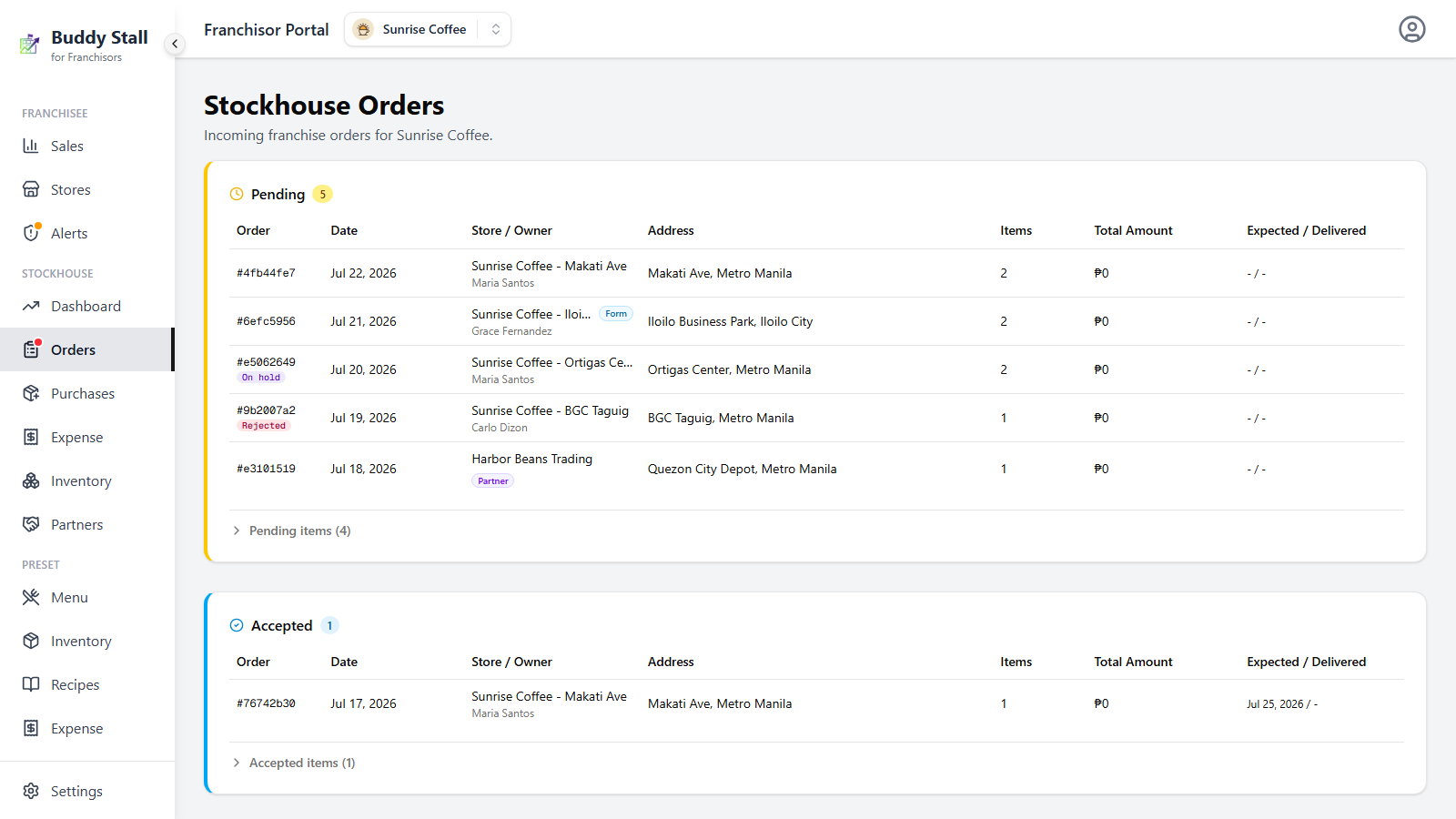
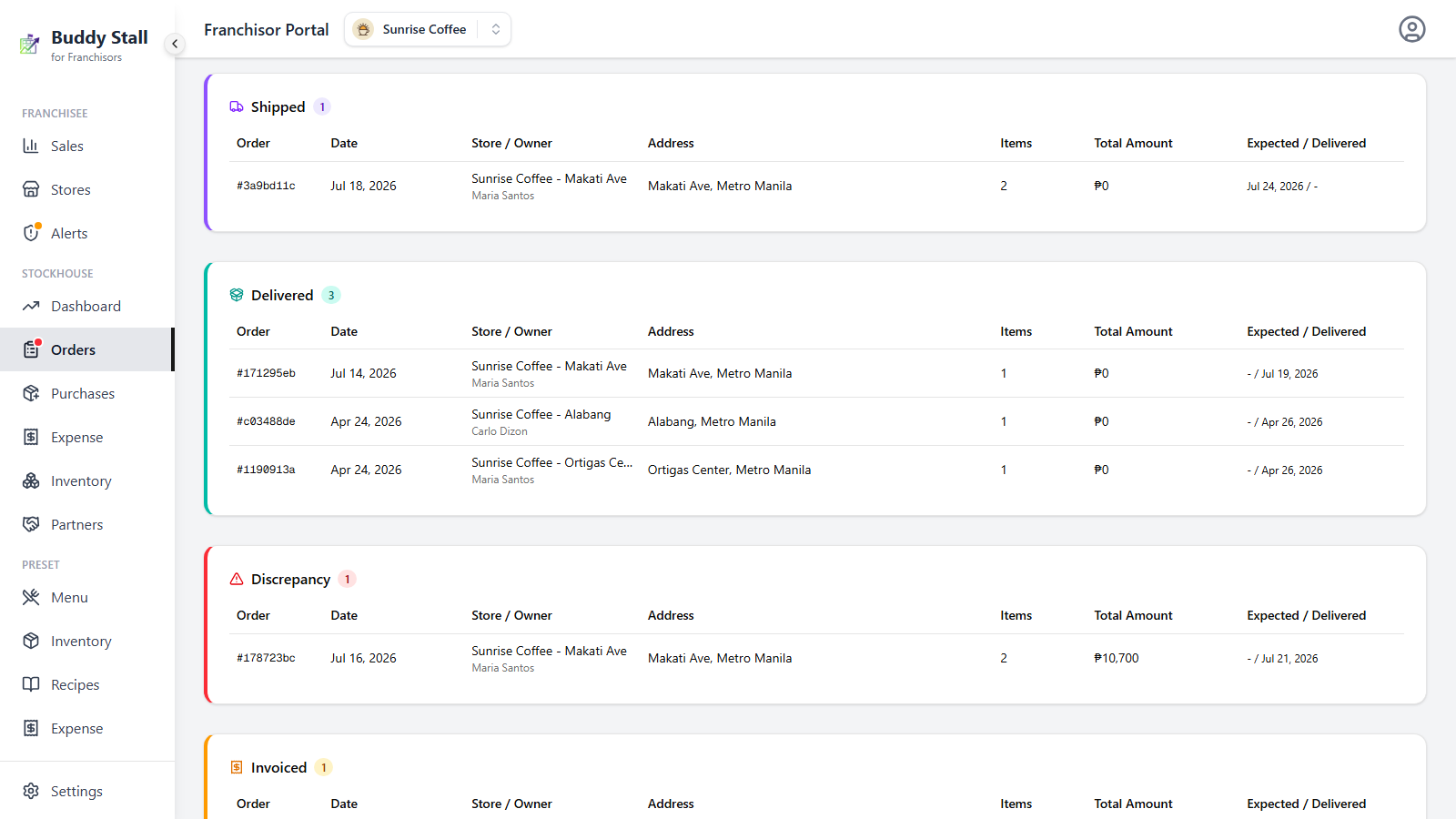
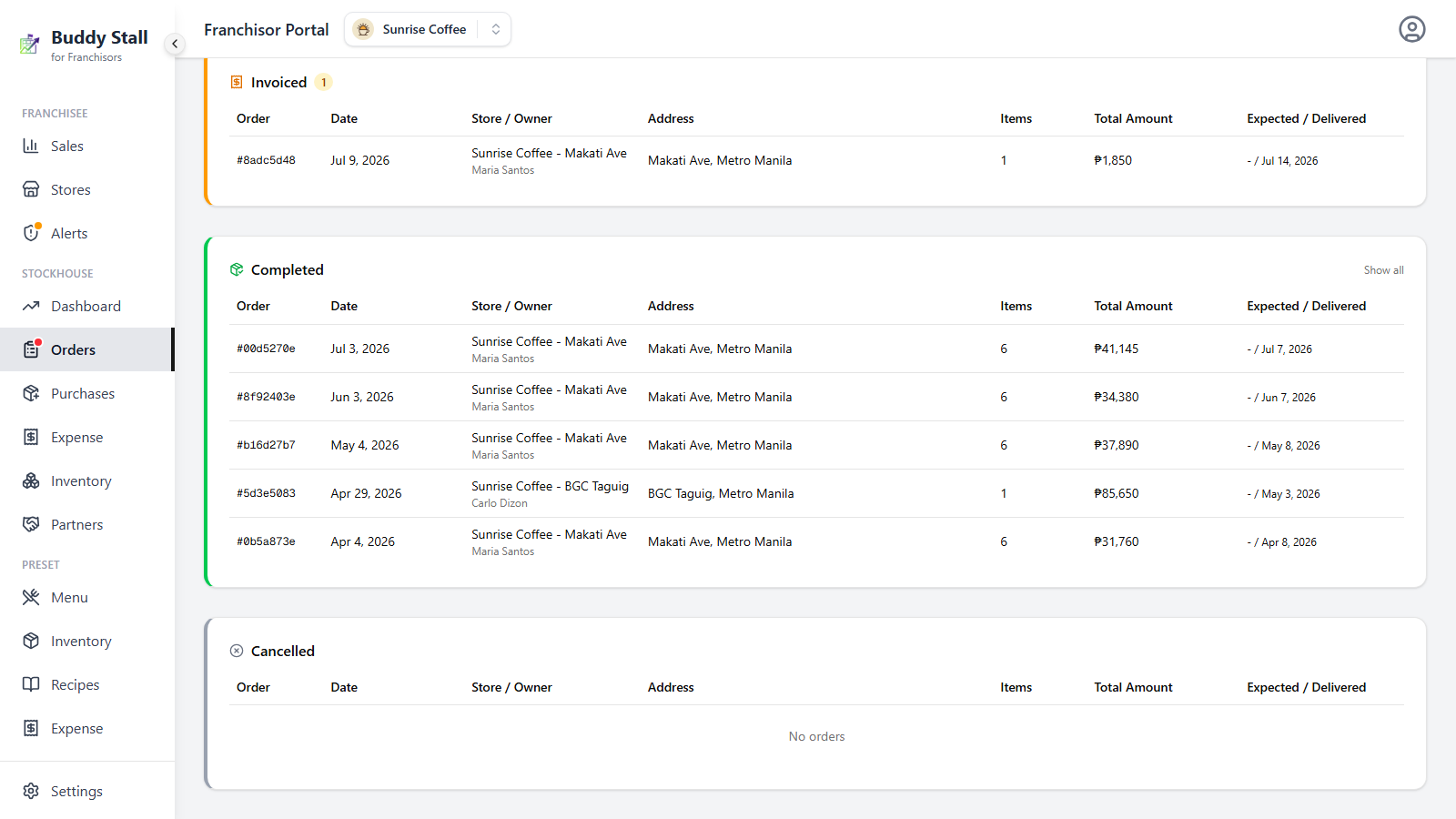
Open StockHouse → Orders from the sidebar. Every order for the franchise lives here, grouped into status sections — Pending, Accepted, Shipped, Delivered, Discrepancy, Invoiced, Completed, Cancelled — each with a count. The long-running sections list every order; Completed and Cancelled show a few recent ones with a Show all link to the full, paginated history.
Which orders are waiting on you
A red dot on the sidebar's Orders item means one or more orders need you — an order sitting in Pending (a new submission to accept), Delivered (received by the customer, ready for you to invoice), or Discrepancy (a shortfall to reconcile).
The markers on a row
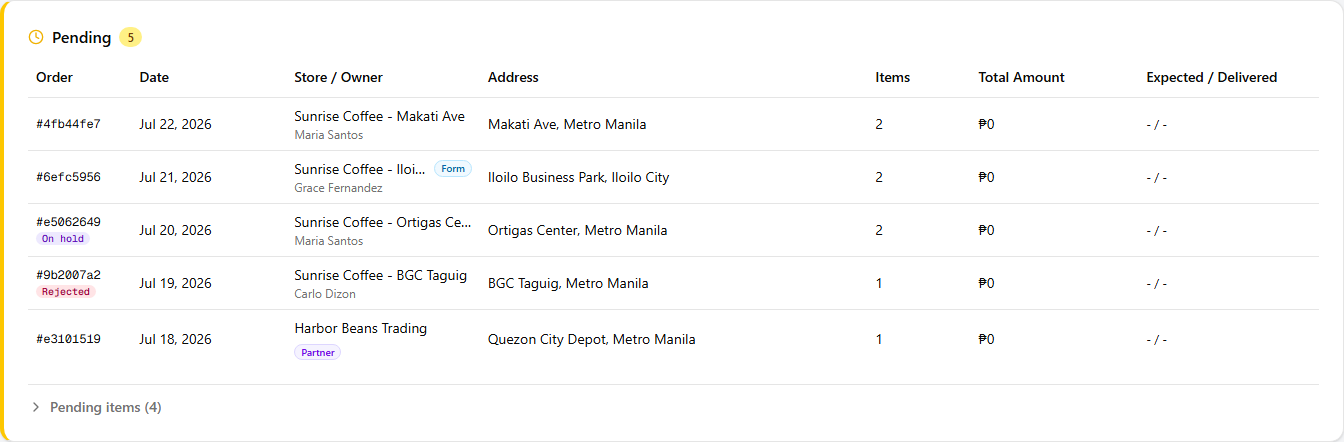
Each row shows the order number, date, the buyer, delivery address, item count, total, and the expected or delivered date (an overdue expected date shows in red). One marker is worth a closer look.
Who's buying. The Store / Owner column tells you which kind of customer placed the order: a store and owner name for a franchisee, a Partner badge for a partner buying from you, or a Form badge — with the contact details they typed — for a public-form order.
Planning a stockhouse run
The Pending and Accepted sections each roll their orders up into a combined item summary. Click Pending items (or Accepted items) below the rows to expand it: it totals the quantity of each item across every order in that section, so you can prepare one stockhouse run without opening each order and adding the lines up yourself.
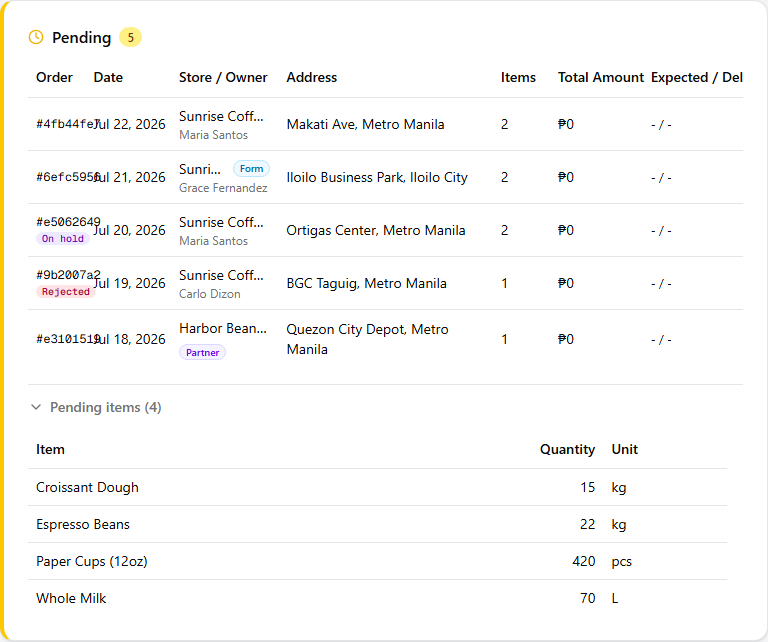
Click any row to open its details, where all of the actions below live.
2. Accept an order
On a Pending order, click Mark Accepted. Accepting only commits you to filling the order — no stock moves yet. If you'd left any line at zero quantity (from a revision), that line drops off as the order is accepted.
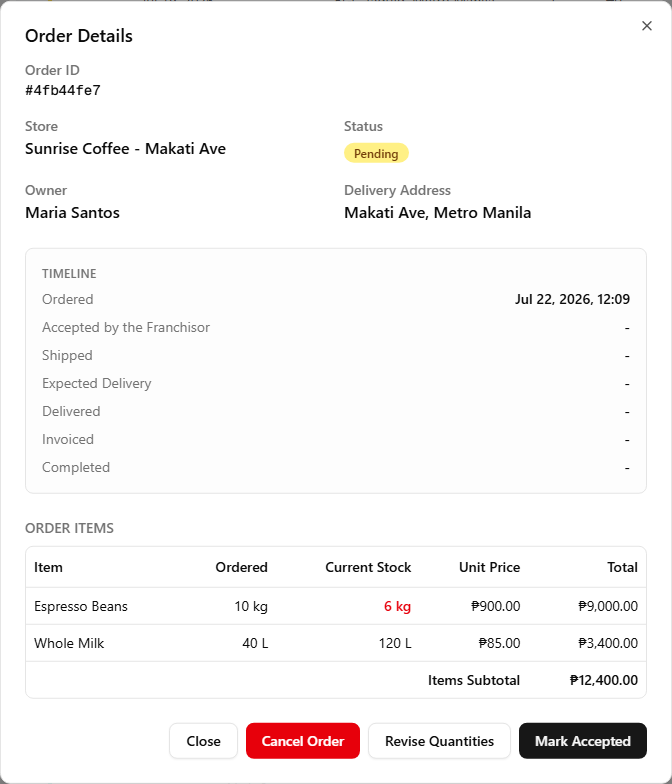
On Pending and Accepted orders the item table shows your stockhouse's current stock beside each ordered quantity, turning red where you don't have enough on hand. It's a heads-up: the order will accept fine, but it won't ship until you restock that line.
Revise quantities before accepting
If you can't fill an order exactly — a line is short, or only sells in different multiples — you don't have to reject it. On a Pending order, click Revise Quantities to open the revision panel: set the quantity you can actually supply on each line (enter 0 to drop a line), add an optional note, and send it.
You adjust quantities only — unit prices come from your preset catalog and can't be changed on an order.
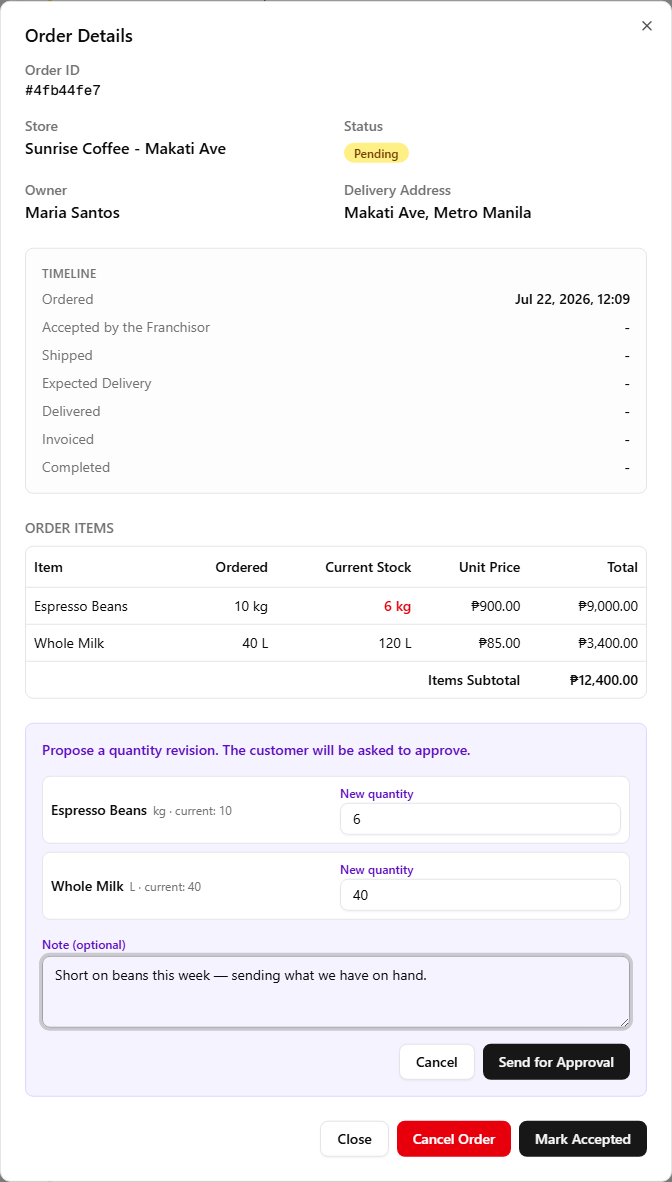
What happens next depends on the buyer:
- A store or partner — the order goes On hold and the change is sent for the customer to approve or reject. You can't accept the order until they respond. If they approve, the new quantities and total stand; if they reject, the original quantities stand and you can accept as-is, revise again, or cancel.
- A public-form buyer — there's no account to approve it, so your change is applied immediately (the button reads Apply Changes) and the total updates on the spot. Tell the buyer yourself. A public-form buyer has no BuddyStall account — the form only captures a name, a phone number and a branch — so nothing is emailed to them and the quantities they'll receive change without warning. Call or message them before you ship; their Phone is on the order's detail dialog.
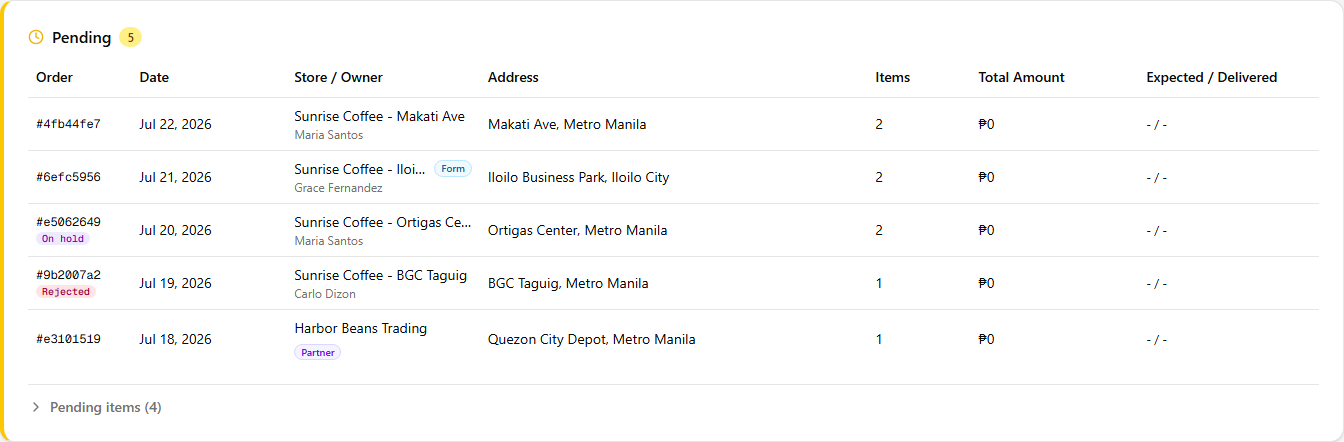
Watch for it back on the board. Once you've proposed a change, the order's Pending row carries a badge under the order number: On hold while it's still with the customer, Rejected once they've declined it and the original quantities stand. A row with neither badge was never revised.
3. Ship it
On an Accepted order, enter an Expected Delivery Date and click Confirm Shipped. This is the step that deducts the stock from your stockhouse, one line at a time.
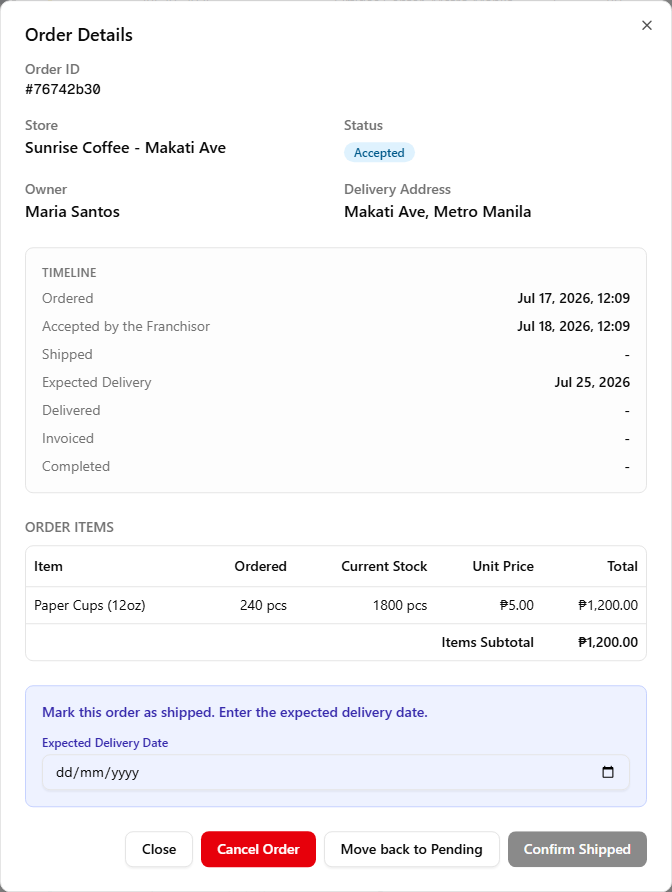
If any line has more ordered than you have in stock, shipping is refused with the item that's short. Restock that item in your stockhouse inventory (or revise the order down first), then ship. Nothing is deducted until every line clears.
4. While the customer receives
Once shipped, the order is with the customer to receive — the detail dialog just shows you're waiting on them. When they confirm, it becomes Delivered, or Discrepancy if what arrived didn't match what shipped.
Public-form orders are the exception. The buyer has no account to confirm receipt, so a Mark Delivered button appears for you to close out the delivery yourself once you know it arrived.
5. Invoice it
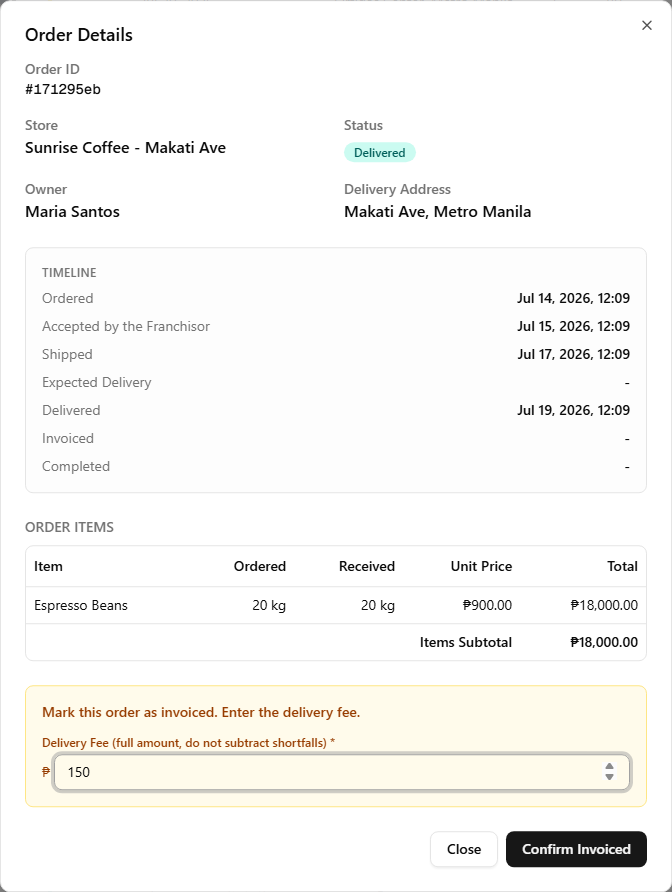
Both Delivered and Discrepancy orders are invoiced from the same place — open the order and its invoice panel is already waiting at the bottom. What the panel asks you for depends on whether the delivery was complete.
A full delivery
Everything shipped arrived, so there's nothing to reconcile. The panel asks for one number: your Delivery Fee. Enter it and click Confirm Invoiced — the invoice bills the quantities the customer received, plus the fee.
A short delivery
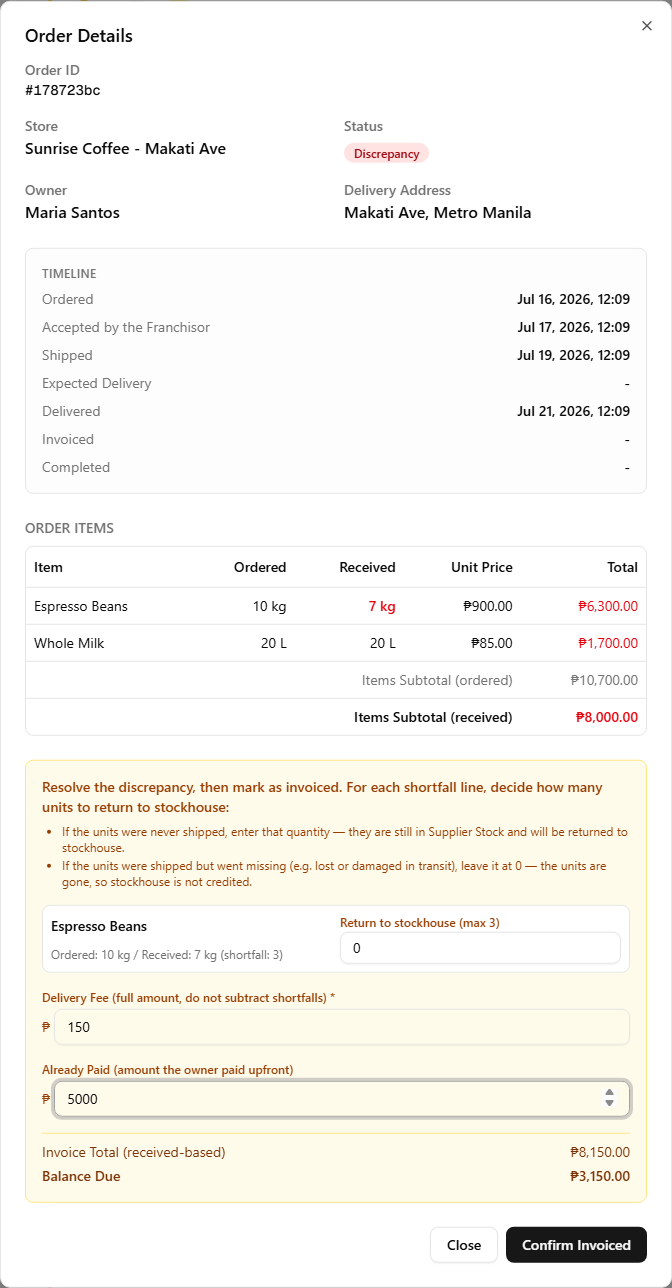
On a Discrepancy order the panel grows: above the delivery fee, each short line asks how many units to return to stockhouse, and an Already Paid field lets you record anything the customer settled upfront.
Two things to get right here:
- Enter the delivery fee gross. Type the full fee — never a figure with a shortfall already subtracted. The invoice already bills less for a short delivery because it's based on received quantity; netting the shortfall into the fee would double-count it.
- Reconcile the shortfall. Each short line offers a return to stockhouse amount, capped at the shortfall. Enter the units that were never shipped — they're credited back to your stockhouse. Leave it at 0 for units that shipped but were lost or damaged in transit — those stay written off, not returned.
Whatever you record in Already Paid feeds the panel's Balance Due — or Refund Due if they overpaid. BuddyStall doesn't move the money itself, so there's no paid/unpaid status — settle up with the customer however you already do.
6. Complete it
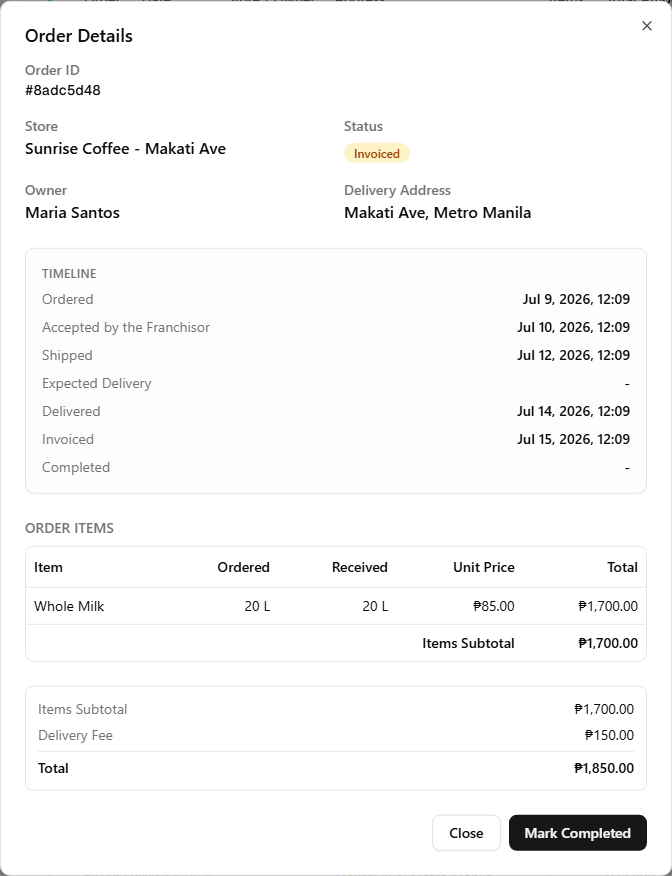
On an Invoiced order, click Mark Completed to close it out. Completing posts the delivery fee to the customer's Transportation expenses automatically — the one charge that receiving didn't already settle. (An order can only be completed after it's been delivered.)
7. Move back, or cancel
Two escape hatches on your side, both limited to the early states:
- Move back to Pending — on an Accepted order, if you accepted too soon or need the customer to change something.
- Cancel Order — on a Pending or Accepted order. Once an order has shipped, stock has already moved, so there's no cancel from your side.
The customer can cancel too — but only while the order is Pending. A store can withdraw its own order right up until you accept it; the order moves to Cancelled and you're emailed. The moment you accept, that option disappears on their side — from then on, cancelling is yours alone. If a customer asks to get out of an order you've already accepted, either cancel it for them, or move it back to Pending so they can do it themselves.
Which emails go out
BuddyStall emails the two sides as an order changes hands (all default-on, opt-out per person in Account settings):
- You're emailed when the customer submits an order, cancels one, confirms delivery or reports a shortfall, or approves/rejects a revision you proposed.
- The customer is emailed when you accept, propose a revision, ship, invoice, or cancel — as long as they have a BuddyStall account.
Public-form buyers get none of these. An external buyer who ordered through the public form has no BuddyStall account to write to, so every customer-side email above quietly goes nowhere for them — including when you mark their order Delivered. Anything they need to know, tell them yourself on the phone number captured with the order or anything suitable.
Read next
How orders flow
The why behind these steps — the shared pipeline, what each status means, and the two moments that move your stock.
Central inventory
The stockhouse stock that shipping draws down — register, price, and restock the items stores order.
Partner suppliers
Third-party suppliers you bring into the franchise — and partners who buy from your stockhouse too.